
How to Access Medisa
The ways to use Medisa: web, PWA on mobile, side panel, and the desktop app.
Medisa can be reached in several ways. They all use the same account and the same data, so you can start recording on a phone and carry on reviewing on a computer.
At a glance
| Access method | What it is for | Status |
|---|---|---|
| Web app | Day-to-day use on a computer | Available |
| Android app | Recording on the move | Available on Google Play |
| PWA (iOS & Android) | Alternative that needs no app store | Available |
| Side panel | Moving results into a hospital system | Available |
| Desktop app | Day-to-day use without a browser | Coming soon |
Web app
The fastest way to start: open app.medisa.io in a browser, nothing to install. Best for use at the desk on a large screen — reviewing and editing SOAP notes is most comfortable here.
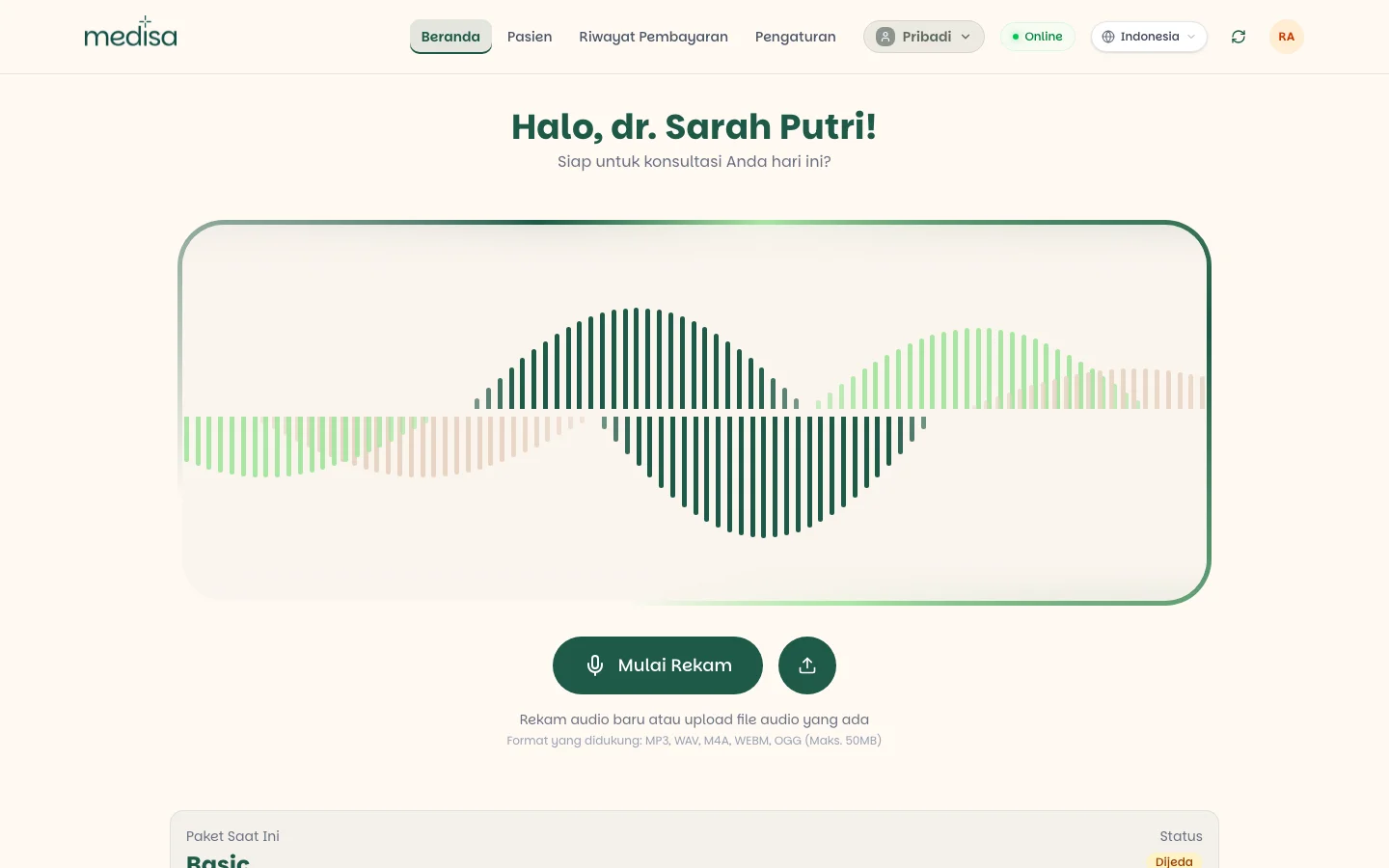
Open app.medisa.io in your browser.
Sign in with your account. See Authentication.
Allow microphone access when the browser asks — without it, recording cannot start.
Use an up-to-date Chromium-based browser (Chrome, Edge) or Safari. Recording needs microphone access, which browsers only grant over a secure connection.
On a phone
On a phone, Medisa opens in its own window without an address bar and keeps recording even when the connection is poor. This is the best option for doctors who move between rooms or practise in more than one place.
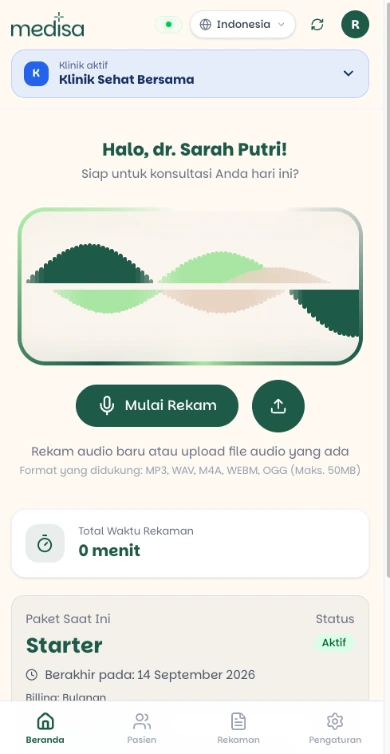
Android users can install it from Google Play. iOS users install it straight from Safari.
From Google Play (recommended)
- Open Medisa on Google Play.
- Tap Install.
- Open the app and sign in with your account.
Or install straight from the browser
- Open app.medisa.io in Chrome.
- Tap the three-dot menu in the top right.
- Choose Install app or Add to Home screen.
Why install it?
Recordings are written to the device first, so Medisa keeps working when the signal drops and uploads by itself once the connection returns. Installing it as an app makes that storage more reliable and the app quicker to reach than a browser tab.
Side panel
A browser extension that shows your sessions and SOAP notes in a side panel, next to the hospital system you already use. Useful when notes have to be moved into another system without jumping between tabs.
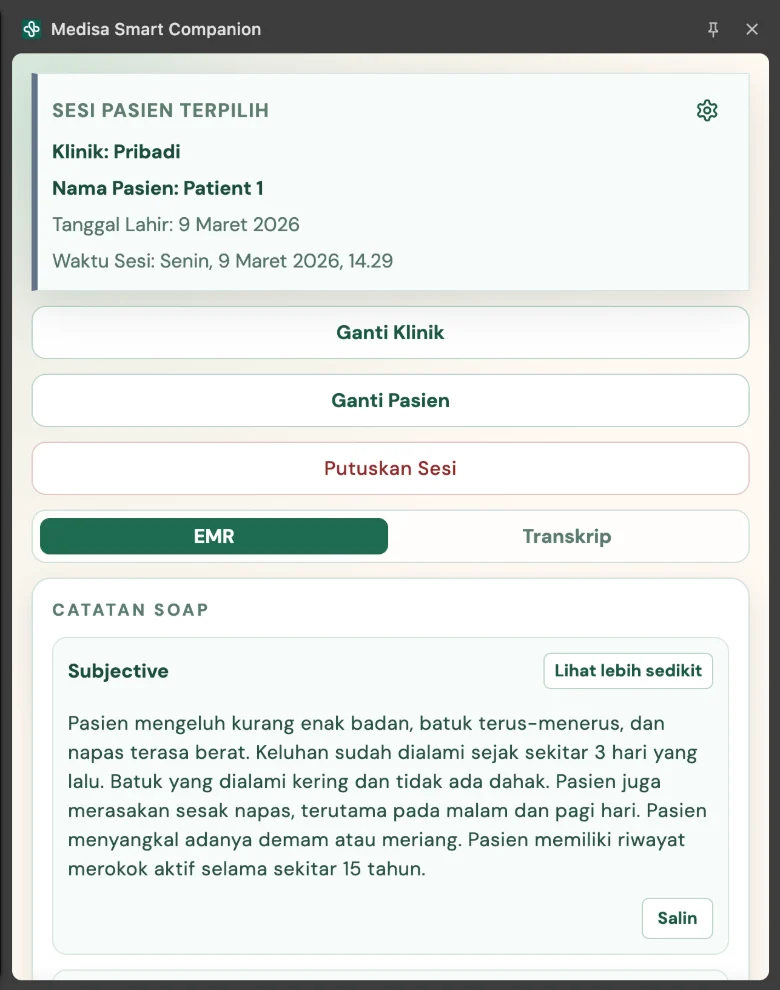
The extension does not record audio — recording always happens in the web app or on your phone. The extension only reads existing sessions and helps move the results across.
Installation and pairing are covered in Side Panel Extension.
Desktop app
Coming soon
The Medisa desktop app is in preparation and has not been released yet. Until it is, use the web app on your computer — the capabilities are the same.
Which one should you use?
- Everyday work in the consulting room — the web app.
- Moving between rooms or practising in several places — the app on your phone.
- Copying notes into a hospital system — the web app or your phone to record, the side panel to move them across.
You do not have to pick one. They all share the same account and the same data.