
Subscription
Reading your quota, choosing a plan, paying, and following the payment history.
A Medisa subscription is sold by recording hours per month. This page covers how to read your remaining quota, switch plans, pay, and follow the history.
It all lives under Settings → Subscription.
Reading your plan
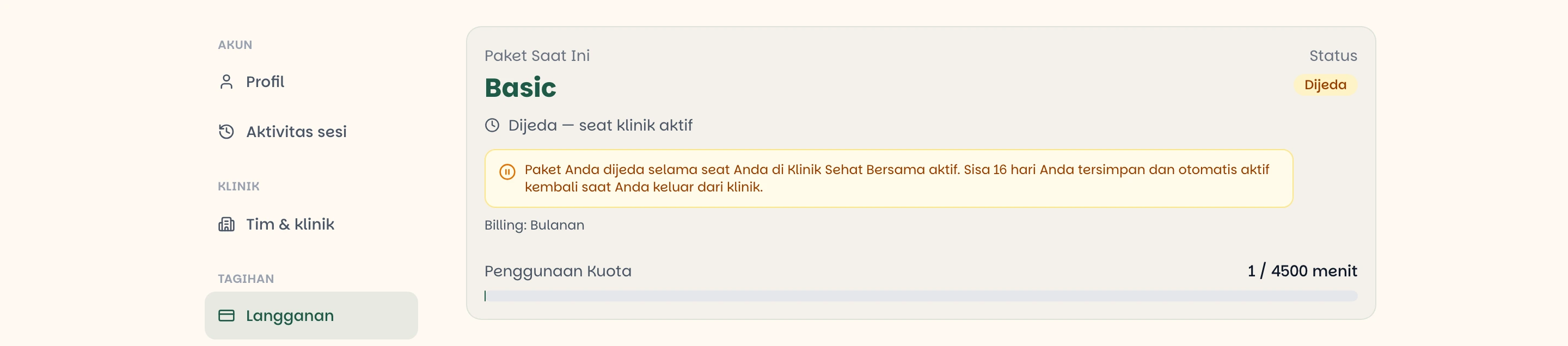
| What it shows | What it means |
|---|---|
| Current Plan | The plan currently in force |
| Status | Active, Inactive, or Paused |
| Ends on | End of the period; after this date the plan needs renewing |
| Billing | The payment cycle — Monthly or Annual |
| Quota Usage | Minutes consumed out of this month's allowance |
Quota is measured by the duration of audio processed, not by the number of records. A 12-minute consultation costs 12 minutes of quota, however long the resulting SOAP note is.
Quota resets every month
Annual subscriptions included. What is paid up front for a year is the price, not the quota — the hour allowance is still counted and reset monthly, and unused quota does not roll over.
Queued plans
If you have already bought a plan for the next period, View Your Plans shows the active plan along with its queue.
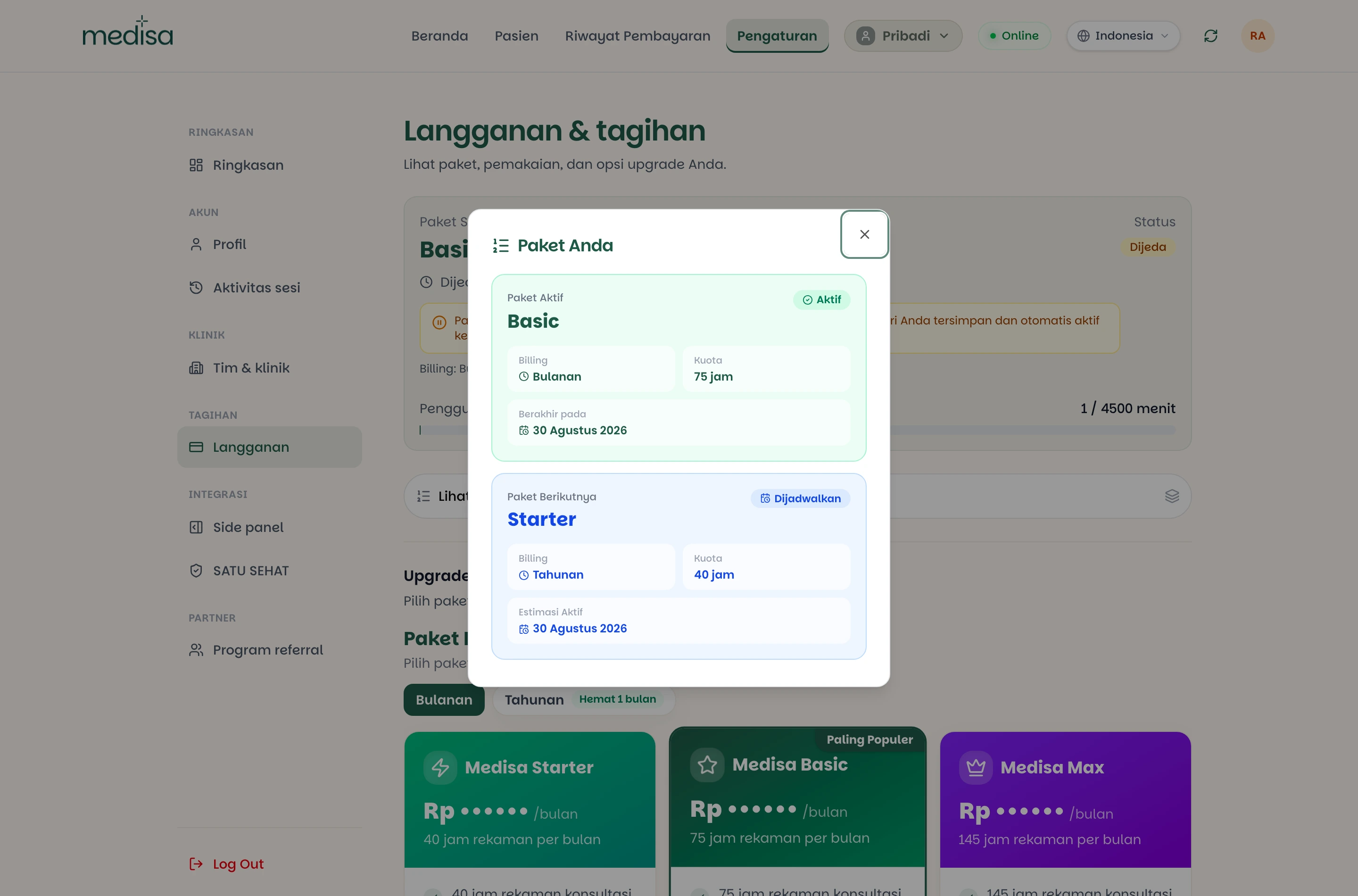
A plan marked Scheduled has not started — it takes over automatically when the current one ends.
Choosing a plan
The plan list sits under the summary card, in the Upgrade Plan section.
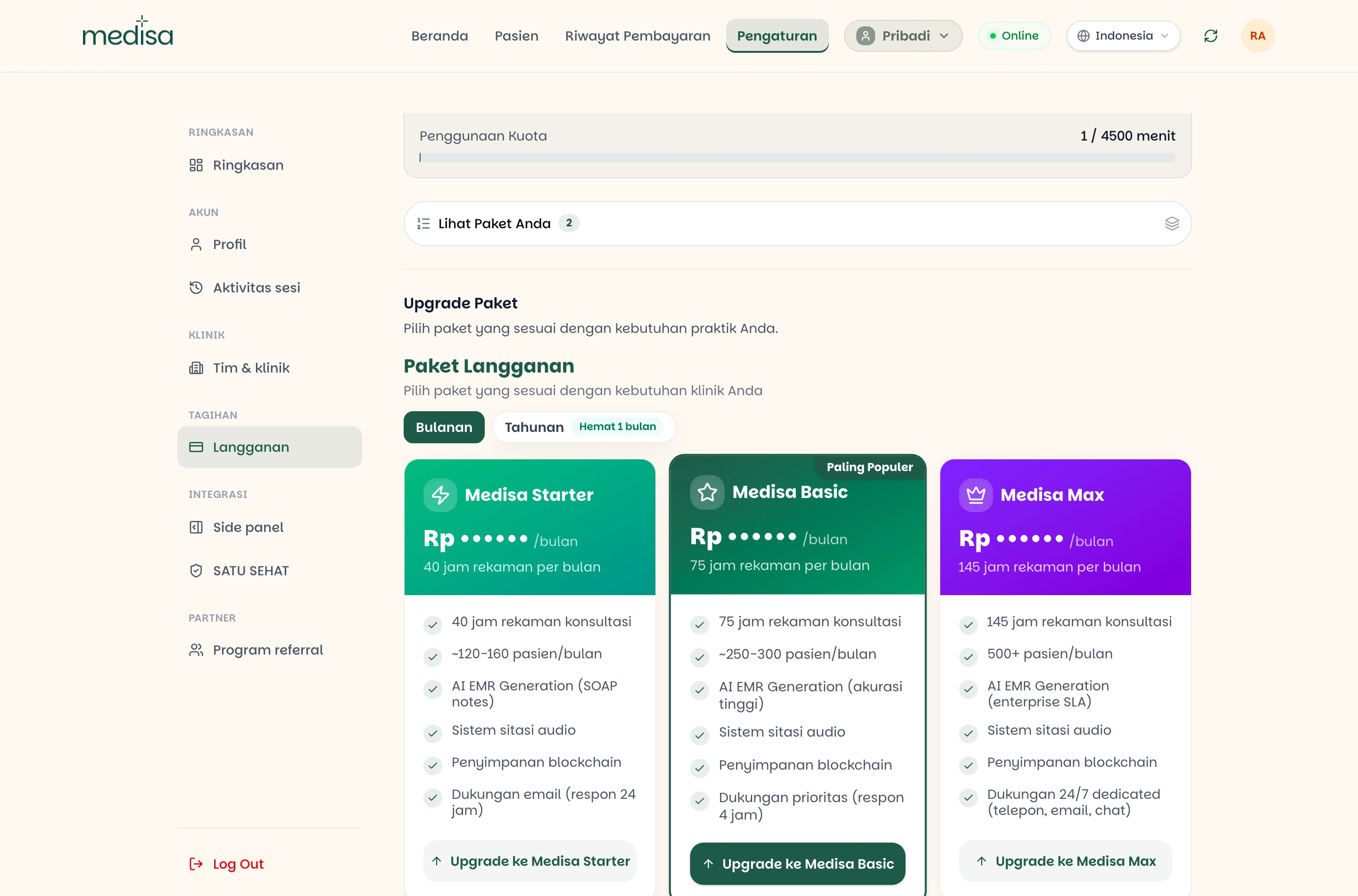
Each card shows the price, the monthly recording allowance, and roughly how many patients it covers. The button underneath adapts to where you stand: Upgrade, Downgrade, or Renew Plan for the plan you are already on.
Monthly or annual
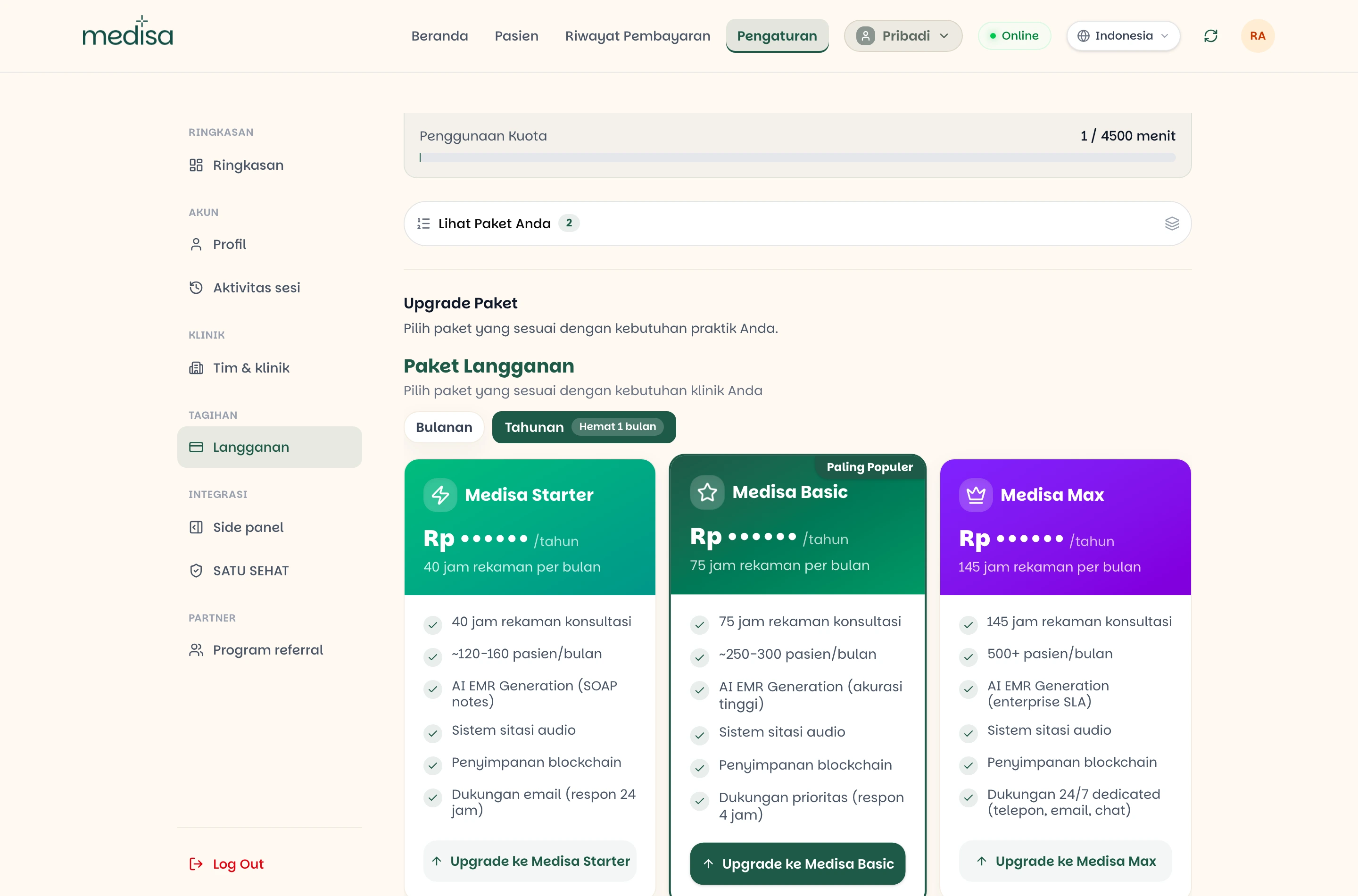
The Monthly / Annual switch above the cards changes the prices shown.
Paying
Press the button on the plan card you want.
Fill in the confirmation dialog.
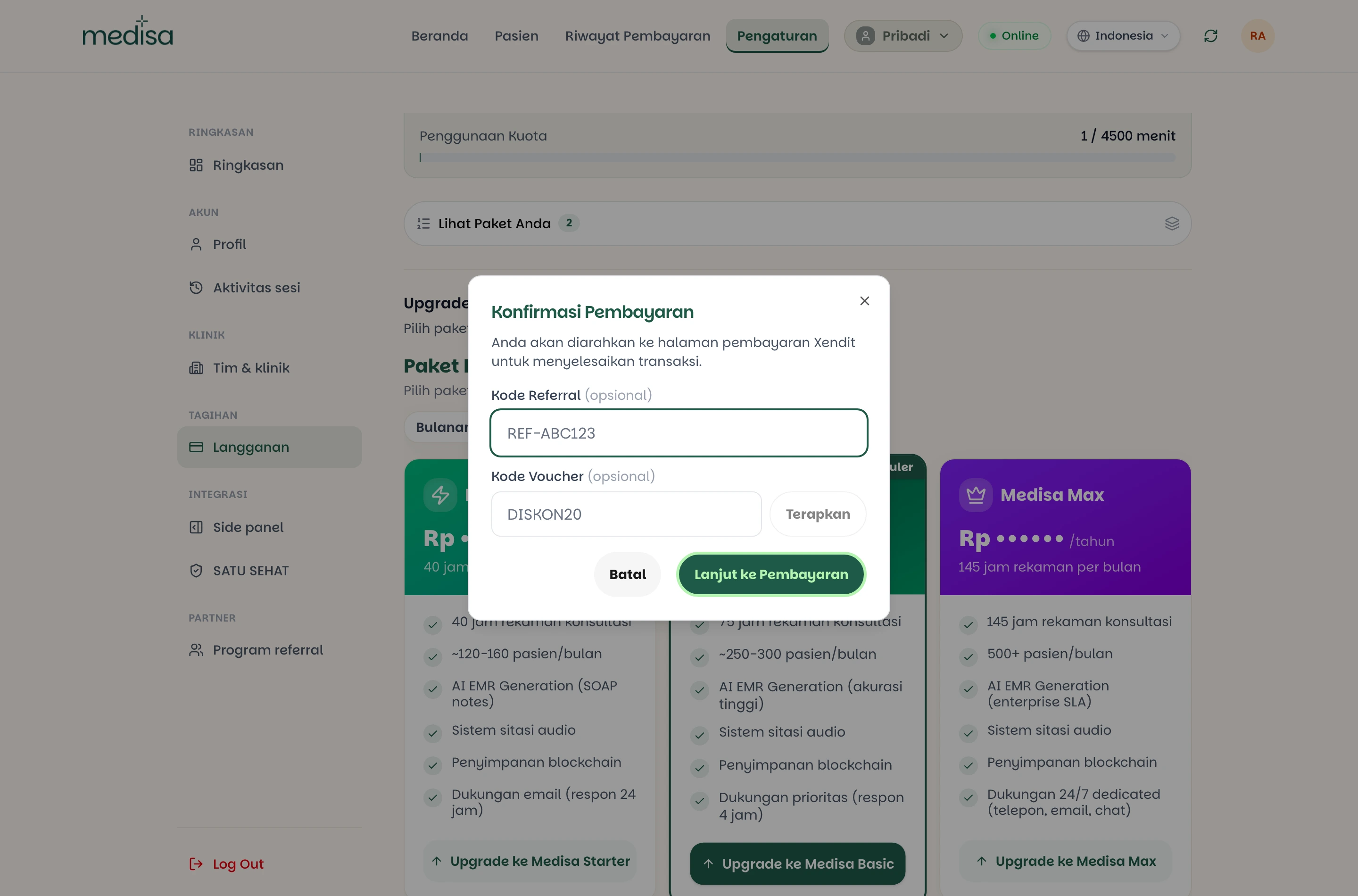
- Referral Code — the code of the doctor or partner who introduced you to Medisa. It is validated first; your own code is rejected.
- Voucher Code — press Apply to see the discount and the final total before continuing.
Press Continue to Payment. You are taken to the Xendit payment page to pick a method — bank transfer, virtual account, and the other available channels.
Once the payment is confirmed, the plan updates automatically and you are returned to the app.
Codes are validated before you continue
If the referral code you entered is invalid, the payment cannot proceed. Correct the code or clear the field.
Upgrades and downgrades differ
| When it takes effect | |
|---|---|
| Upgrade | As soon as the payment is confirmed — the new quota applies immediately |
| Downgrade | At the end of the current billing cycle; until then your plan is unchanged |
That is why a downgrade always asks for a separate confirmation first.
Payment history
Payment History in the top navigation lists every subscription transaction.
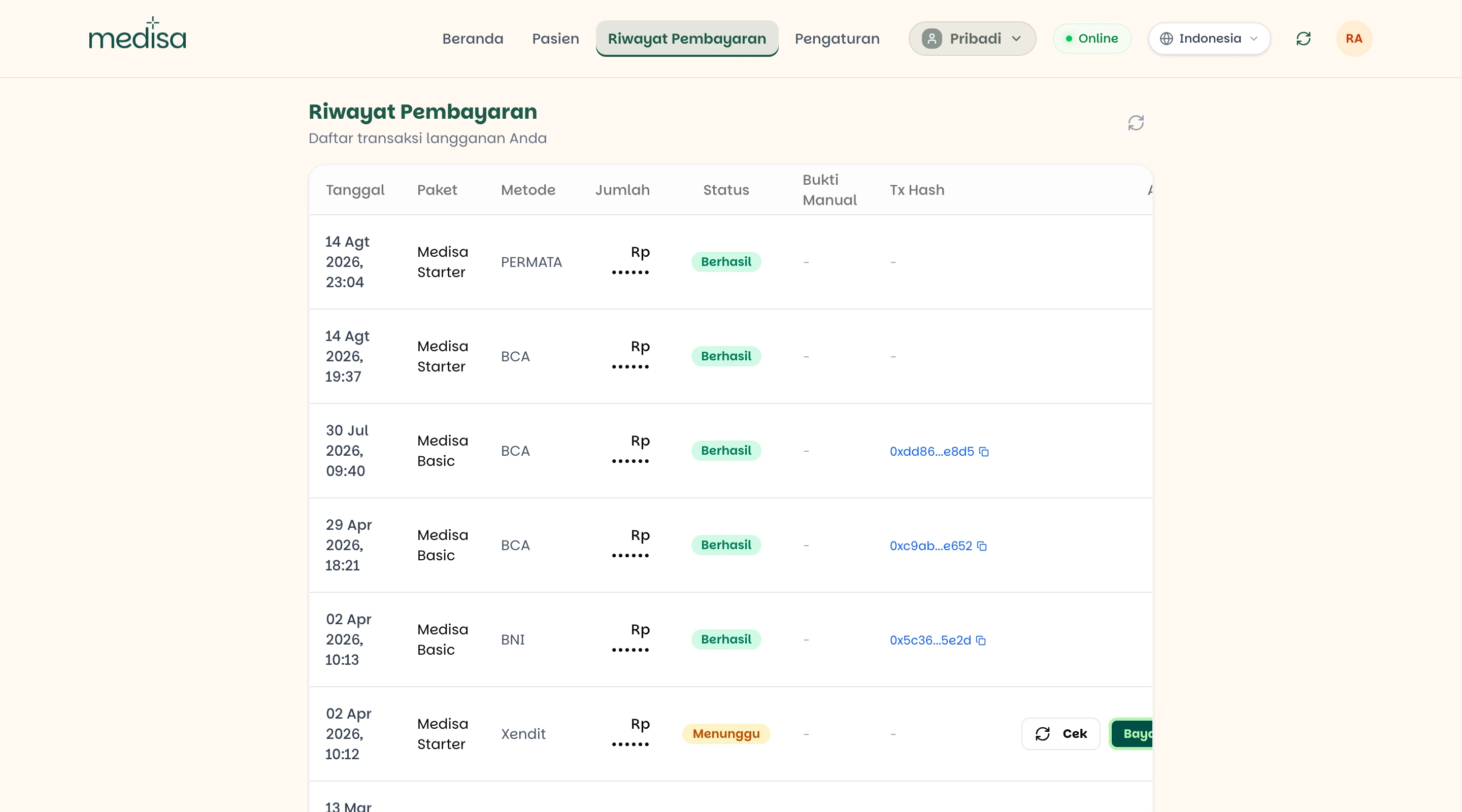
| Column | What it holds |
|---|---|
| Method | The payment channel used — BCA, BNI, CIMB, or Xendit, for example |
| Status | Successful, Pending, Failed, or Expired |
| Manual Proof | The state of a transfer receipt you uploaded: not uploaded, under review, approved, or rejected |
| Tx Hash | A link to the transaction's blockchain record, available once the payment is settled |
A Pending transaction carries two buttons: Check to refresh its status from the payment gateway, and Pay to reopen its payment page.
Transferred but the status has not changed
Press Check first. If it stays pending, use Upload proof on that row to submit your transfer receipt. A Medisa admin reviews it and the status becomes Under review.
When the quota runs low
The app warns you in stages:
- Quota almost used up — an early warning as you approach the limit.
- Quota exhausted — new recordings cannot start until you add to or raise your plan.
- Plan no longer active — the period ended without a renewal.
Renewal reminders are also emailed before the period ends.
Your records stay safe
An exhausted quota or an expired plan only stops new recordings. Existing records, transcripts, and SOAP notes remain open and readable.
If you hold a clinic seat
While you hold an active seat in a clinic, your personal subscription is Paused: its remaining days are held and do not tick down, and your usage is drawn from the clinic's quota.
The personal plan resumes automatically once you leave that clinic, with the same number of days it had when it was paused. See Adding Organization Seats.
If something goes wrong
| Symptom | Most common cause |
|---|---|
| Paid but the plan has not changed | The gateway's confirmation has not arrived — press Check in the payment history |
| Voucher rejected | Wrong code, already used, or expired |
| Referral code rejected | The code does not exist, or it is your own referral code |
| Still on the old plan after a downgrade | By design — a downgrade only applies at the end of the billing cycle |
Plan status is Paused | You are using a clinic seat; the personal subscription is held meanwhile |
| Cannot record despite an active plan | This month's quota is used up; wait for the reset or raise the plan |
Related pages
- What is Medisa — the institutional routes and the referral programme
- Adding Organization Seats
- Creating a New EMR