
SATU SEHAT Integration
Connecting Medisa to SATU SEHAT with your facility's credentials, and submitting outpatient records.
SATU SEHAT is Indonesia's national health data exchange, run by the Ministry of Health. Medisa can submit outpatient visit records to it automatically, so you do not retype them in another system.
What gets submitted
What travels is the visit as FHIR data: patient, practitioner, location, visit time, diagnosis, and the examination summary.
Audio is never submitted
Audio files and raw transcripts are not sent to SATU SEHAT. Only structured visit data is exchanged.
Facility credentials are mandatory
Submission to SATU SEHAT always uses your own health facility's access keys — there is no other route.
Medisa cannot and must not submit data on your facility's behalf using its own credentials. Each facility holds its own keys, grants them through the SSP / REGFASYANKES portal, and can revoke them at any time. The consequence is simple: without facility credentials, this integration cannot be used.
The built-in credentials are for trials only
The Sandbox environment can use Medisa's test credentials so the flow can be tried before registering. Sandbox data is not recorded as an official visit. The moment you switch to Production, your facility's credentials are required.
What you need
| Requirement | Comes from | Notes |
|---|---|---|
| IHS Organization ID | SSP / REGFASYANKES portal | The facility's identity in SATU SEHAT |
| Client ID and Client Secret | SSP / REGFASYANKES portal | The facility's own API access keys |
| Doctor's NIK or Practitioner ID (IHS) | The doctor | They must already be registered as a Practitioner in SATU SEHAT |
| A registered practice location | SATU SEHAT | Picked from existing locations, or registered from Medisa |
| Patient NIK or passport number | The patient profile | Without one the patient cannot be registered |
| A verified record | Medisa | Only records you have signed off are submitted |
Medisa stores no practitioner personal data
The doctor is looked up in SATU SEHAT by NIK, and only the resulting Practitioner ID is stored. Medisa registers no new practitioners and holds none of your personal details in SATU SEHAT. The NIK you enter is encrypted and never displayed again.
Connecting a practitioner and a location
Credentials belong to the facility; the practitioner and location are set per doctor. Every doctor who will submit works through these steps once, under Settings → SATU SEHAT.
Practitioner. Enter your 16-digit NIK and press Save & search. Medisa looks up your Practitioner (IHS) ID in SATU SEHAT automatically.
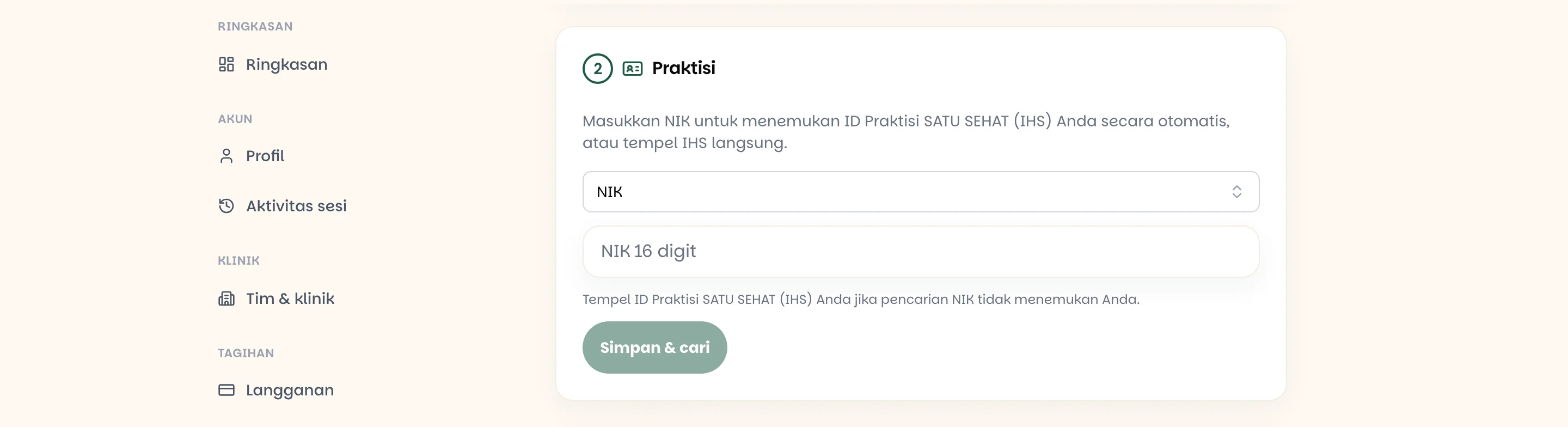
If the lookup does not find you, paste your Practitioner ID (IHS) manually into the field below.
Location. Pick a registered practice location, or register your clinic directly from Medisa.
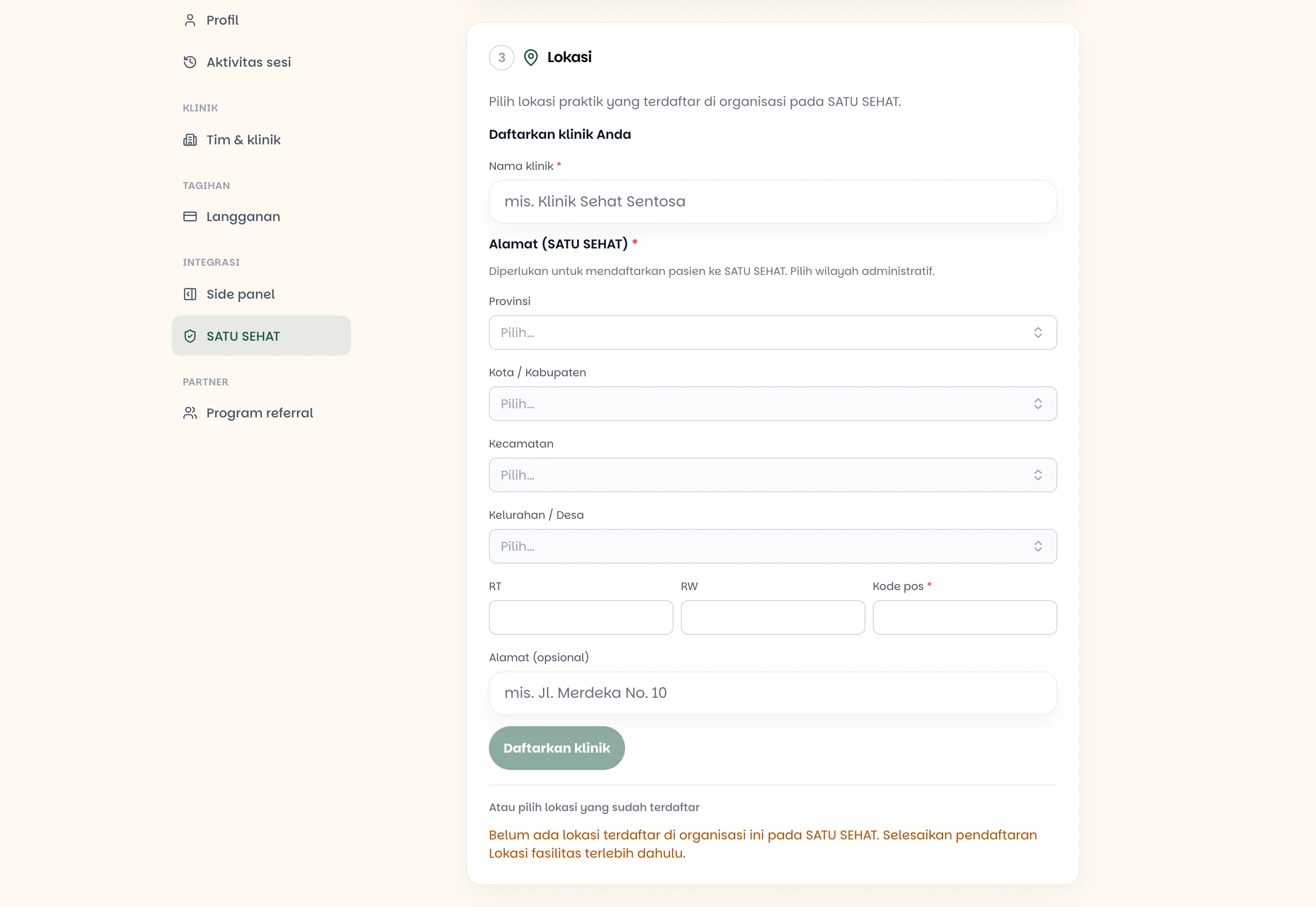
The address is chosen in cascade — province → city → district → village — plus a postcode. This address is also used when registering patients with SATU SEHAT, so it is required.
Review and activate. Press Activate connection. Medisa confirms the Practitioner ID and the location, then switches submission on.

The connection status sits at the top right of the page: Not synced or SATU SEHAT synced.
Connecting a clinic
Facility credentials are installed at clinic level, and only a clinic admin can set them up. The clinic's SATU SEHAT identity is shown under Team & clinics → Settings.
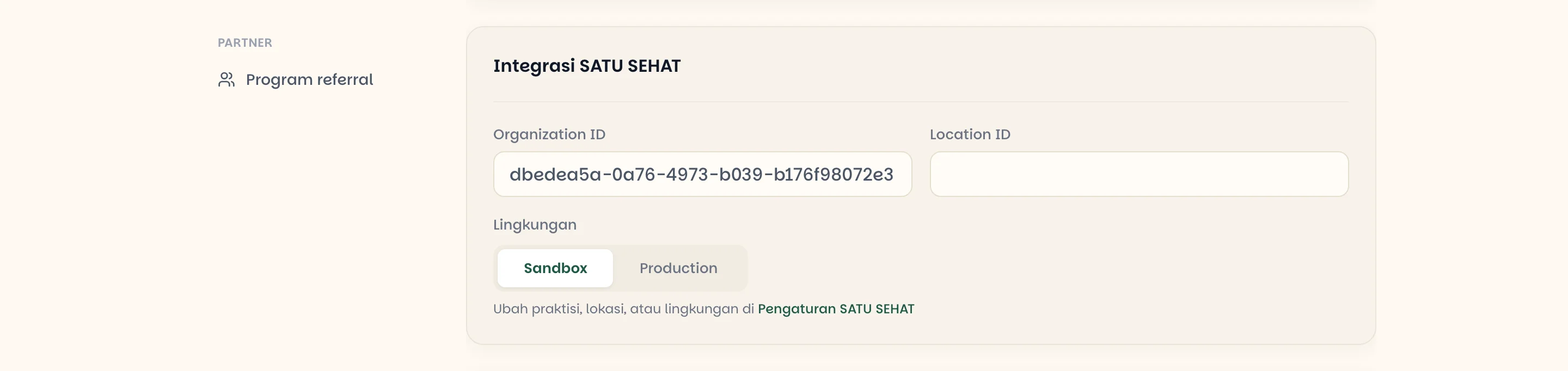
Note the Environment switch: Sandbox for trials, Production for official records. The two
use different credentials and are not interchangeable.
Collect three things from your facility's SSP / REGFASYANKES portal: the IHS Organization ID, the Client ID, and the Client Secret.
On the SATU SEHAT page in clinic context, press Enter credentials, fill in all three, and press Save & verify.
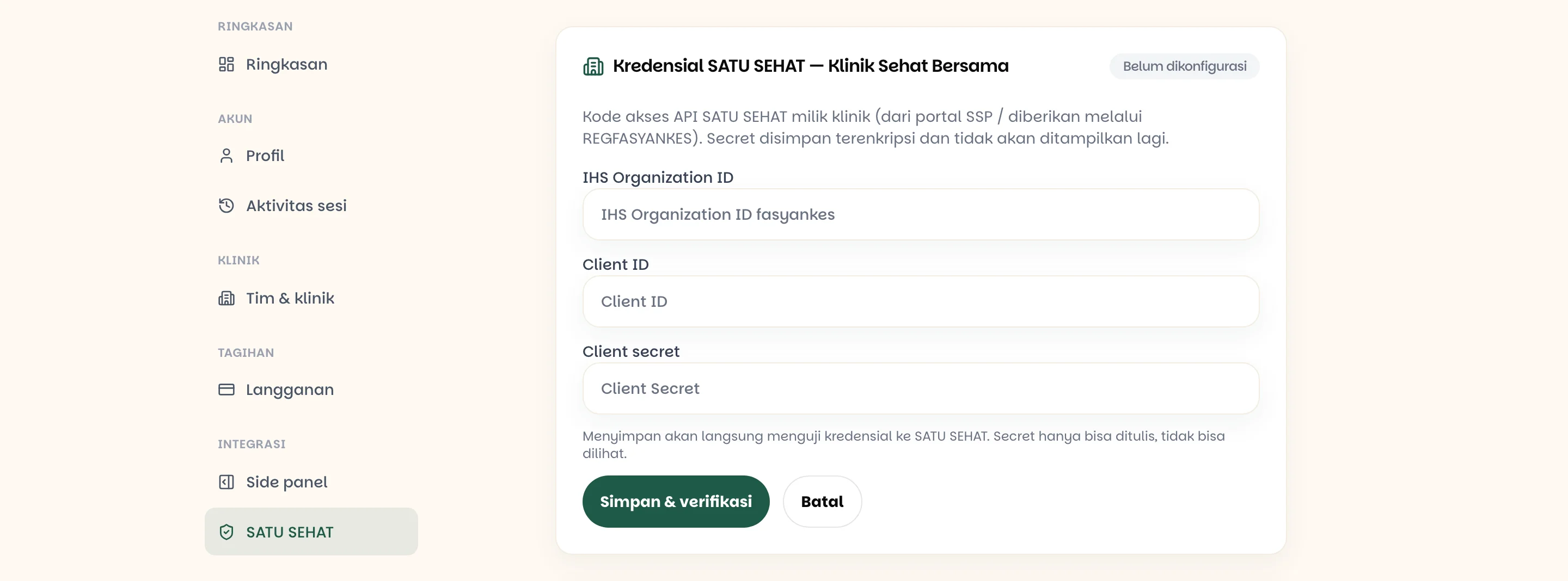
Medisa tests the credentials against SATU SEHAT immediately. The status becomes Connected on success, or Invalid if they are rejected.
The client secret is write-only
The secret is stored encrypted and never shown again — not even to you. If it is lost, replace it with a new one through Replace credentials; there is no way to read it back.
Clinic credential status can be Not configured, Connected, Invalid, or Revoked. Revoke stops submission for that clinic until new credentials are entered.
Clinic members who are not admins see a message that their clinic is not connected, asking them to contact a clinic admin.
Submitting records
Once the connection is live, every record carries a Submit to SATU SEHAT button with its status: Not submitted, Submitted, or Submission failed.
Submission runs in the background, so you do not wait on screen. The stages are: queued → submitting → submitted.
Two other routes are available:
- Auto-sync after blockchain verification. When enabled, records submit themselves as soon as they are secured on the blockchain — no button involved.
- Submit all. Sends every verified record that has not gone yet; already-submitted ones are skipped automatically.
Only verified records are submitted
Records still in draft are skipped with the note Not verified on the blockchain. Verify them under Editing an EMR first, then submit.
If something goes wrong
| Message / symptom | What it means |
|---|---|
| "SATU SEHAT integration is not enabled" | The connection has not been activated in Settings |
| "SATU SEHAT Practitioner ID is missing" | The Practitioner step is not finished |
| "Not found in SATU SEHAT" | The NIK did not match — paste the Practitioner (IHS) ID manually |
| "Patient NIK or Passport Number is required" | Complete the patient's identity details first |
| "The patient could not be registered with SATU SEHAT" | The patient's NIK or passport was not recognised — check it |
| "No locations registered for this organization" | Register the facility location first |
| Clinic credential verification fails | Wrong credentials, or the permission has not been granted in REGFASYANKES |
| "SATU SEHAT is unavailable" | Credentials are not configured server-side — contact support |
Related pages
- Editing an EMR — verify a record before submitting it
- Creating a Patient — completing the patient's NIK or passport
- Organization Feature