
Side Panel
Installing Medisa Smart Companion, pairing it with your account, and using it beside another system.
What the side panel is
Medisa Smart Companion is a browser extension that shows your Medisa SOAP notes and transcripts in a side panel — beside whatever tab you have open, without covering it.
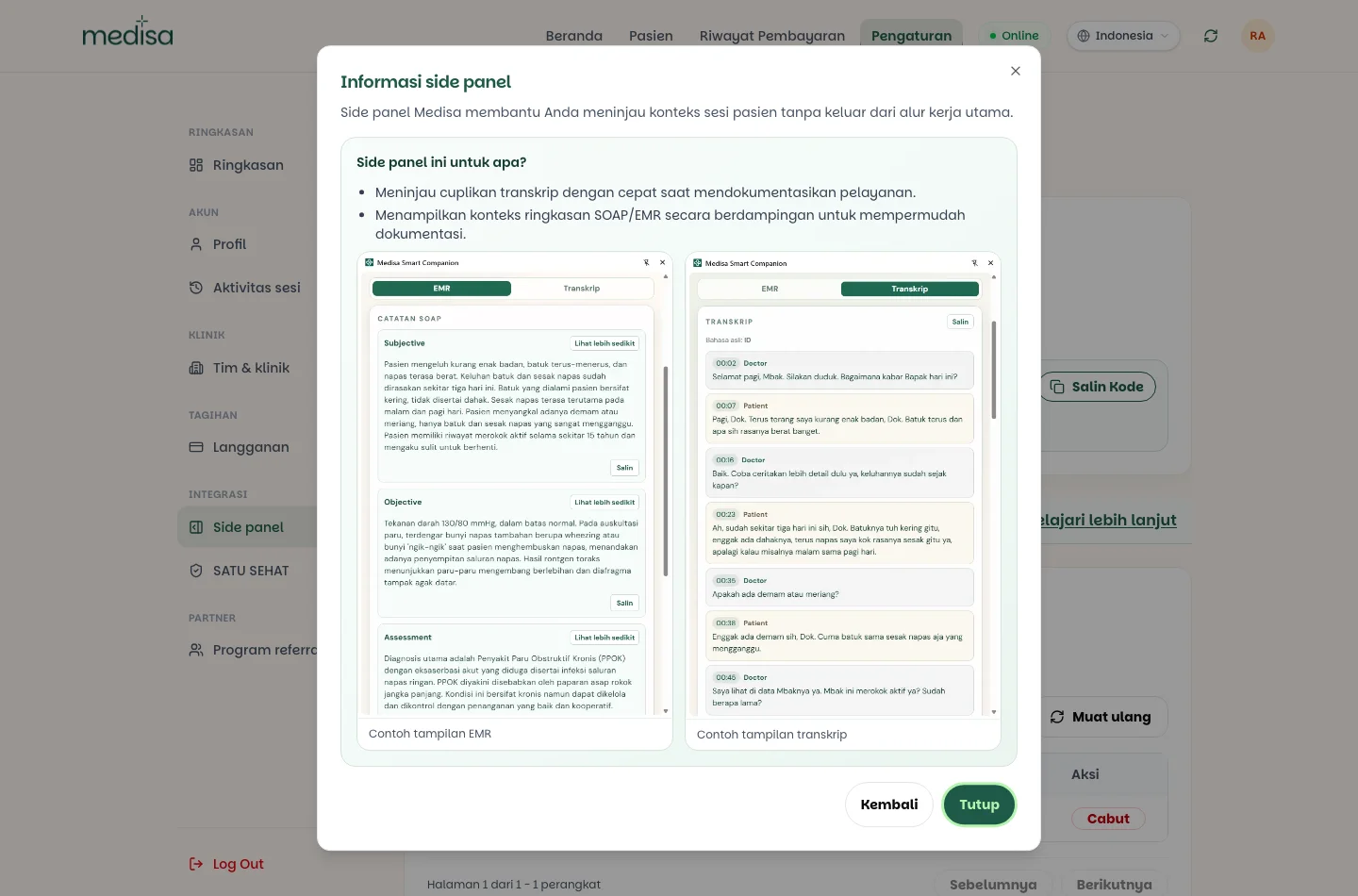
The panel is read-only. It does not record audio, does not edit notes, and does not touch the web page open next to it. The one action it can take is marking a session as done.
What it is for
Most hospitals and clinics already run their own medical record system, and doctors still have to fill it in. Without the side panel that means going back and forth: open Medisa in one tab, read the note, switch to the hospital system, retype it, then switch back to check nothing was missed.
The side panel removes that switching. The SOAP note sits beside the form you are filling in, and a Copy button on each section puts its content on the clipboard, ready to paste.
Why copying rather than auto-filling
Medisa deliberately does not fill in other systems' forms for you. Auto-filling would require access to the contents of the hospital system's pages — a trade-off that is not worth it. Copying keeps you in control of what lands in the official record, and works with any system without a bespoke integration.
Who it is for
| A good fit for | Why |
|---|---|
| Doctors required to fill in a hospital SIMRS or EMR | The Medisa note sits beside the form to be filled |
| Doctors in clinics with their own queue or billing system | Patient context stays visible while working in it |
| Doctors reviewing at a desktop | Transcript and SOAP read side by side without switching tabs |
If you document entirely inside Medisa, the side panel is optional — everything in it is also in the web app.
Requirements
The extension needs Google Chrome 114 or newer, or a Chromium-based browser that supports side panels. You also need an active Medisa account.
Installing the extension
Open Medisa Smart Companion on the Chrome Web Store and install it.
The same link is available inside the app under Settings → Side panel → Learn more → Extension installation guide.
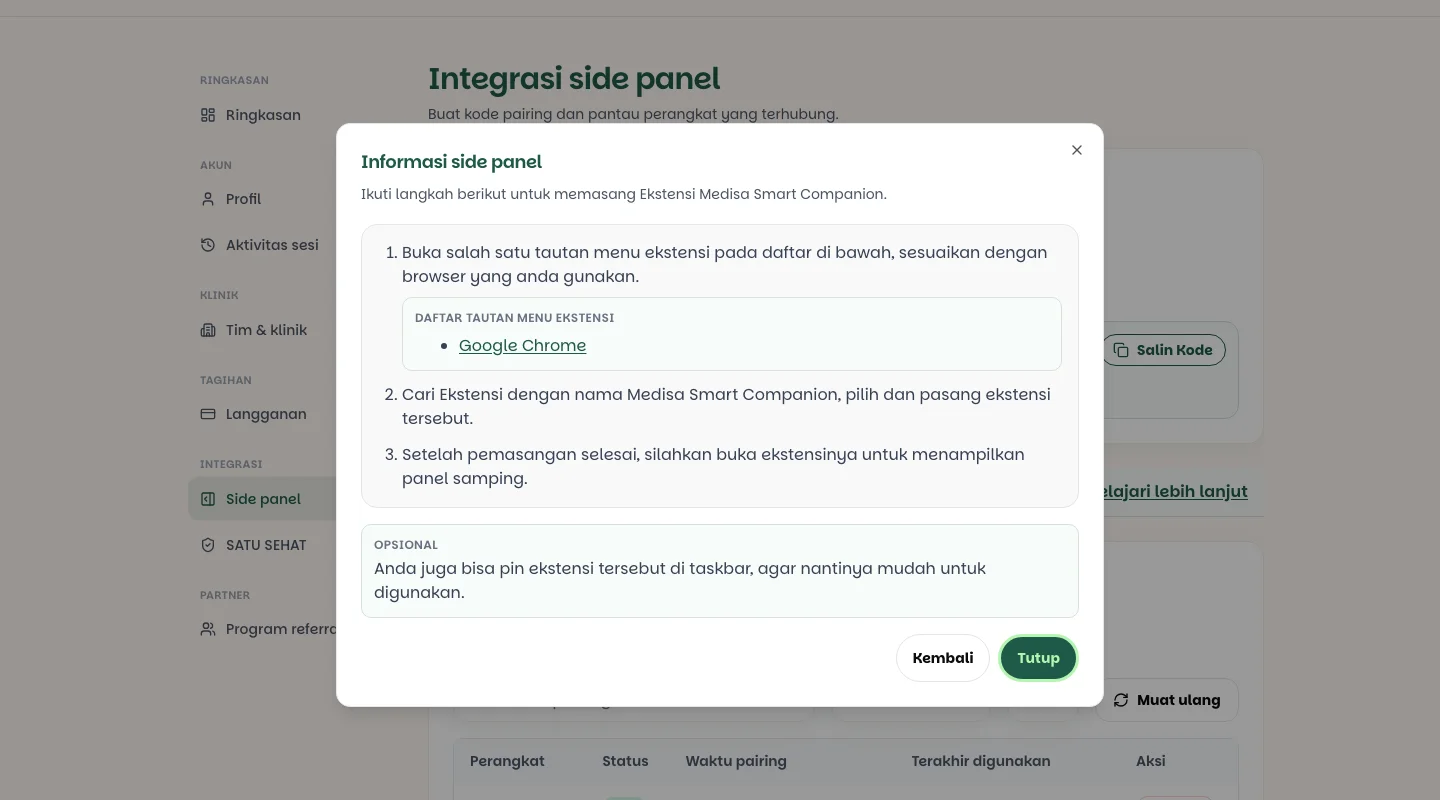
Once installed, open the extension to bring up the side panel.
Pin its icon to the extension bar so it is easy to reach. Optional, but worth it if you use it every day.
Pairing a device
The extension does not use an email and password. It is paired with an OTP code generated in the web app, so every browser is registered as its own device that can be revoked at any time.
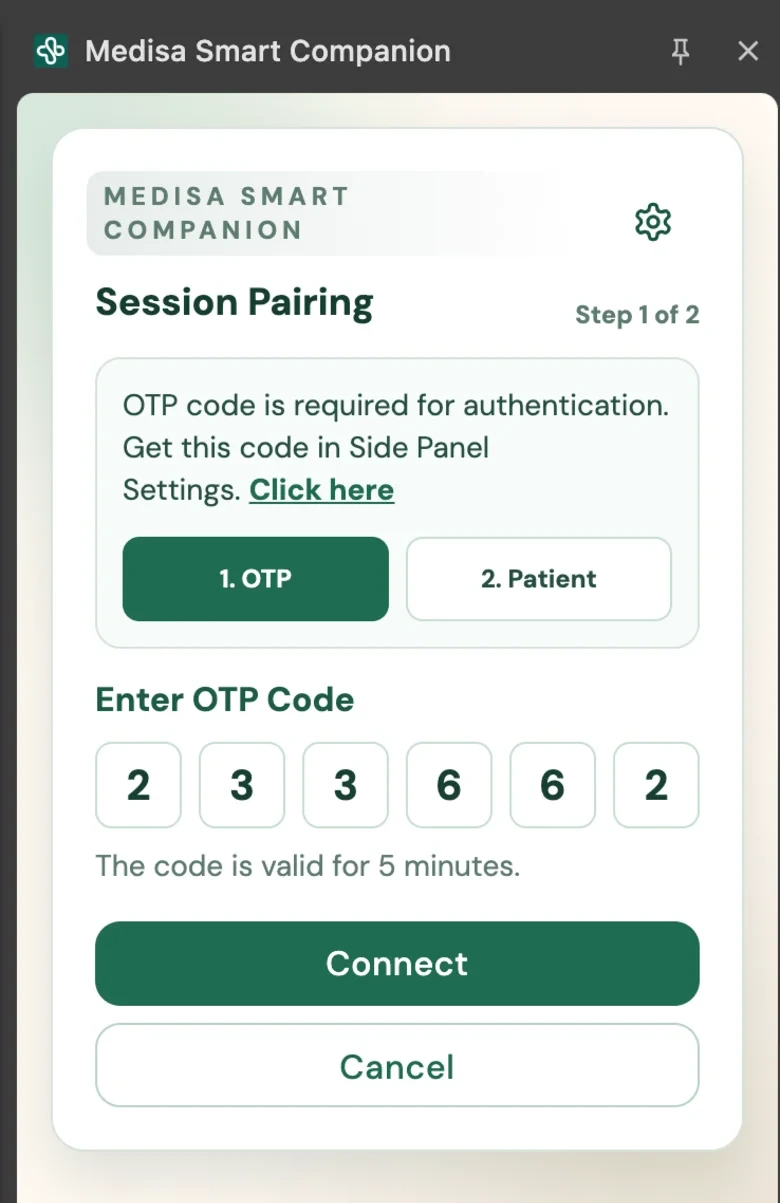
The panel calls this Session Pairing and splits it into two steps: 1. OTP and 2. Patient.
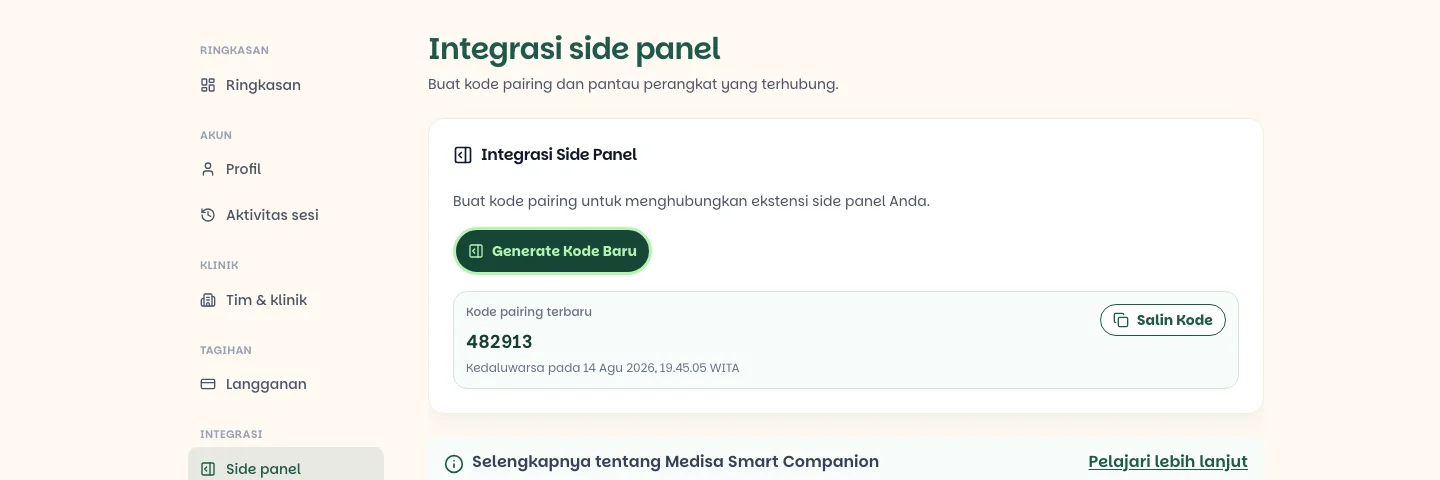
In the web app, open Settings → Side panel and press Generate New Code.
Open the side panel. Until a session is active, the panel offers nothing but a Start Pairing button.
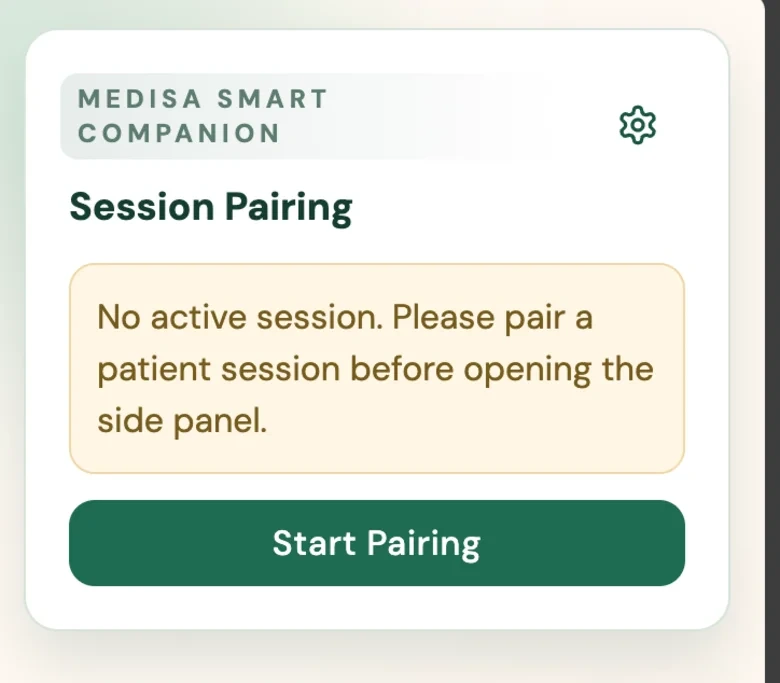
Press it, then enter the six digits under Enter OTP Code and press Connect.
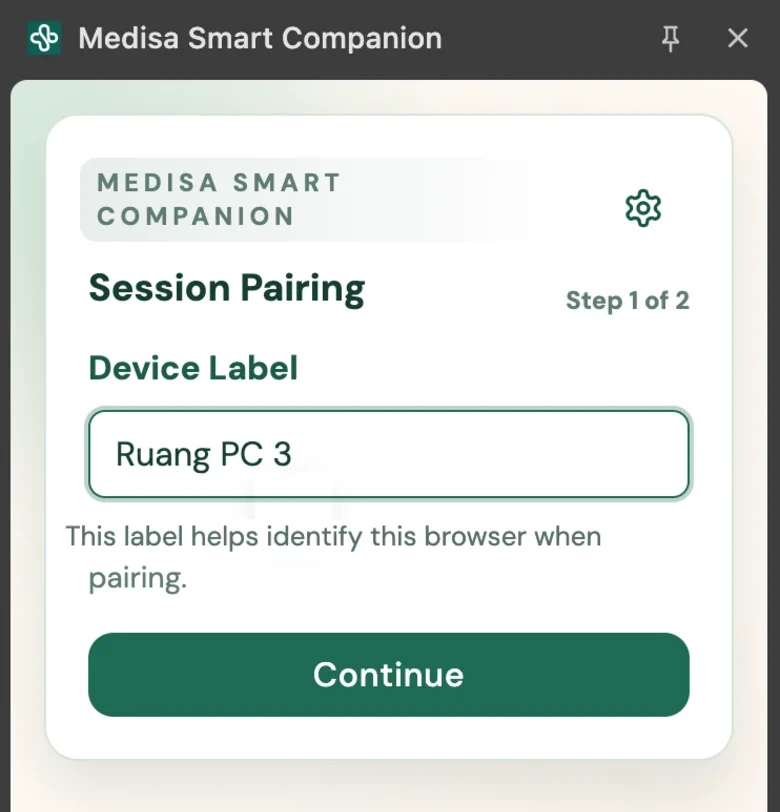
Fill in the Device Label — a name that identifies this computer, such as Room 3 - PC or
Paediatrics Laptop — and press Continue. This is the label you will see in the device list.
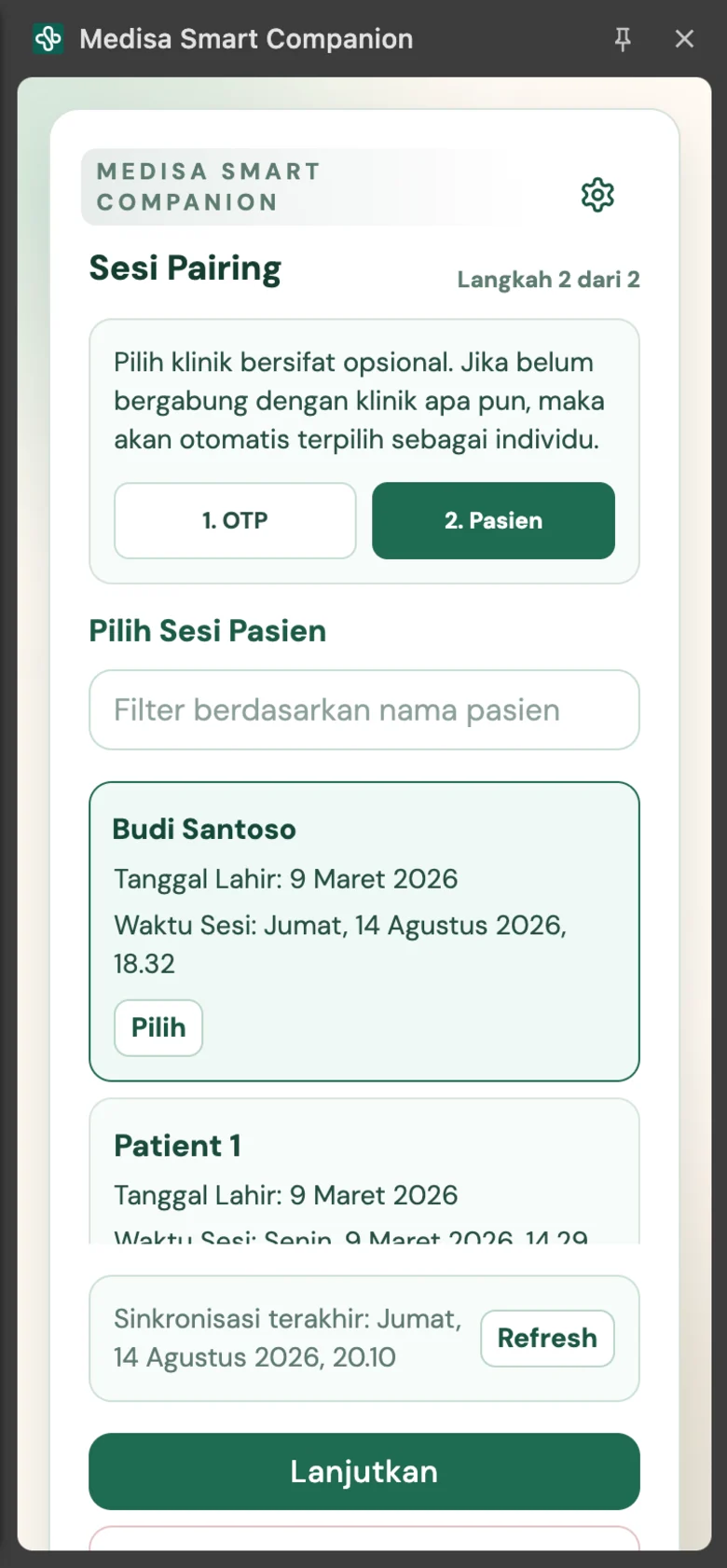
On step 2. Patient, pick a clinic if your account belongs to more than one. This is optional: if you have not joined any clinic, the context is set to individual automatically.
Then pick a patient session from the list and press Continue. The list can be narrowed with the patient name filter and reloaded with Refresh.
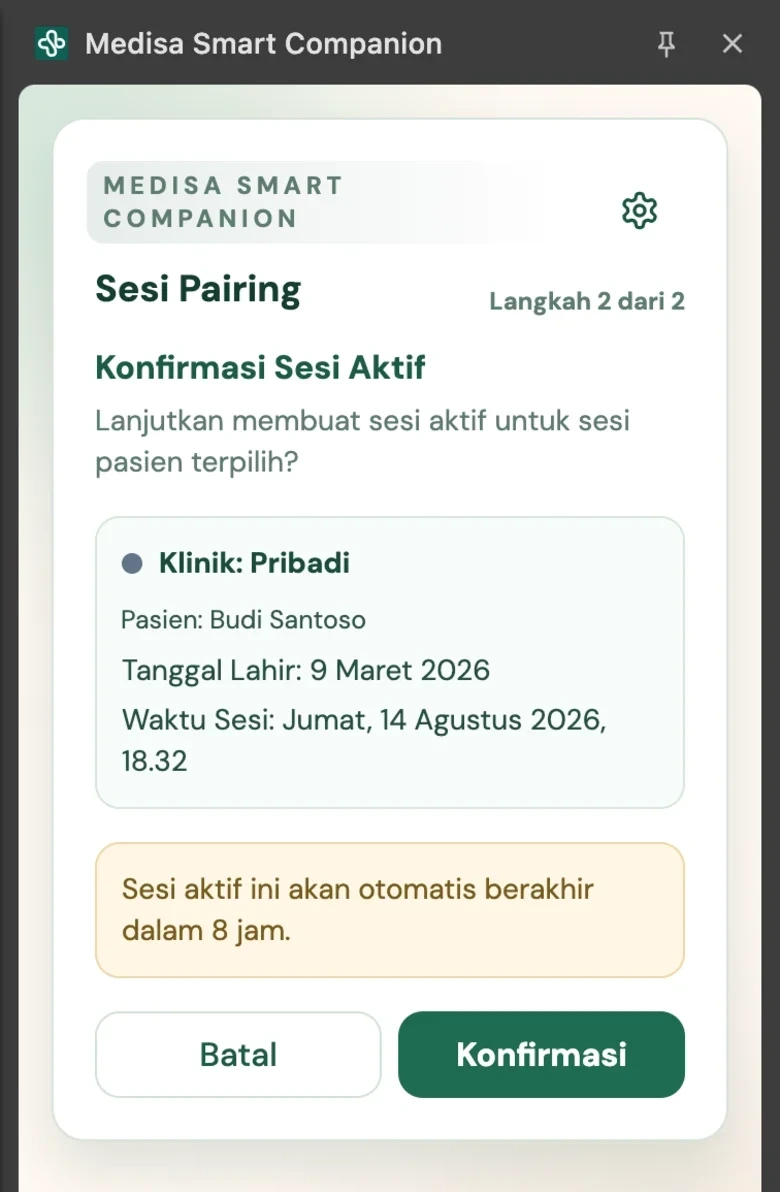
Check the summary under Confirm Active Session — clinic, patient name, date of birth, and session time — then press Confirm.
The code expires in 5 minutes
Generate it when you are already at the panel, not well in advance. If it lapses, press Generate New Code — the old one stops working automatically.
Using the panel
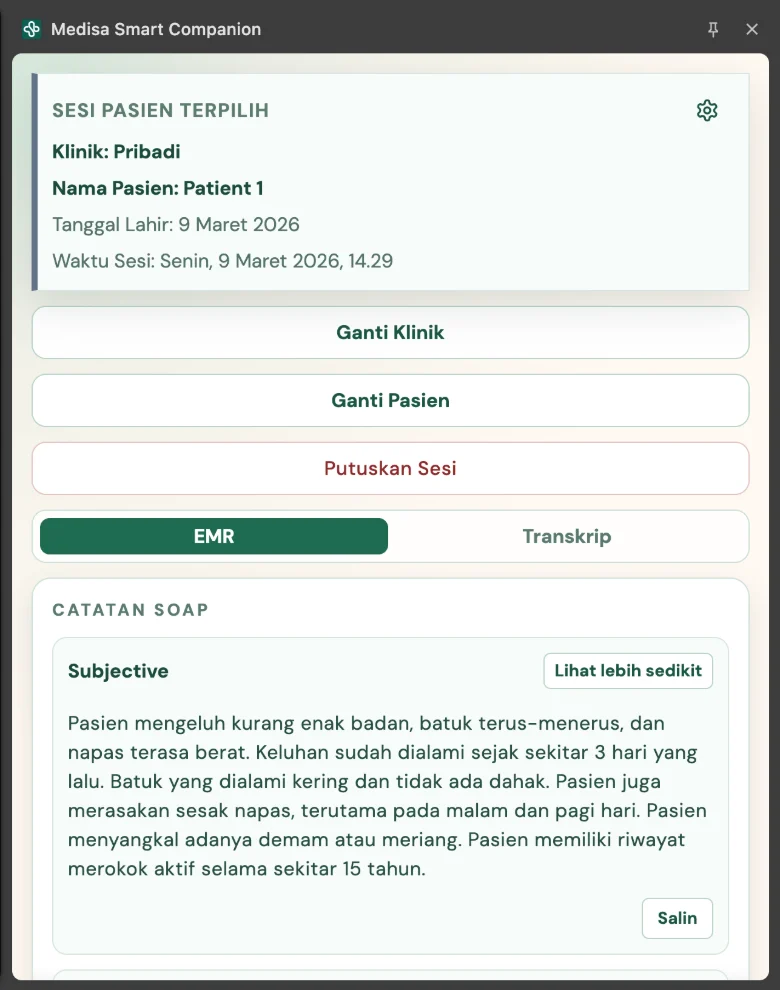
Once paired, the panel shows Selected Patient Session at the top — clinic, patient name, date of birth, and session time — followed by Change Clinic, Change Patient, and Disconnect Session, then the two content tabs:
| Tab | What it holds |
|---|---|
| EMR | The SOAP note by section, each with a Copy button |
| Transcript | The full conversation with timestamps and speaker labels |
Each SOAP section can be collapsed with Show less and copied with Copy, so you paste only the part you are filling in.
The other available actions:
- Change Patient — move to another patient session without re-pairing the device.
- Change Clinic — switch clinic context, then pick a session within it.
- Mark as Done — mark the session complete. This is the only data change the panel can make, and it asks for confirmation first.
- Disconnect Session — end the active session on this device.
- Panel settings — the gear icon in the top-right corner, holding the language choice (ID, EN, ZH, MS) and font size (S, M, L). The language follows your account settings unless you override it here.
Translations carry over
When a SOAP note is shown in a translated language, the panel marks it with a Translated SOAP label and a reminder that the translation is AI-generated. The transcript stays in its original language. See EMR Translation.
Managing devices
Every browser that has been paired is listed under Settings → Side panel, on the Devices tab.
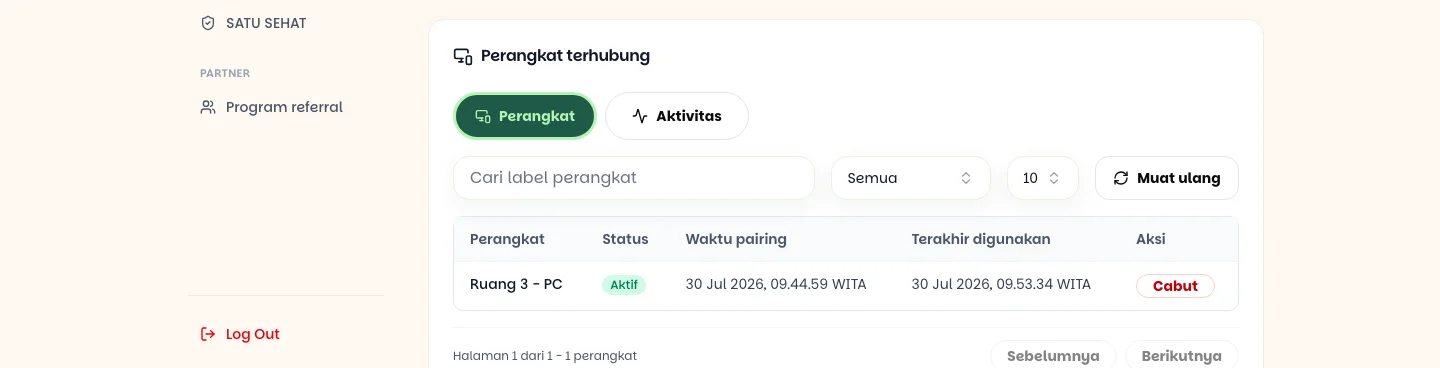
Revoke disconnects that device. The panel on that computer is signed out immediately and has to be paired again with a fresh code.
Revoke devices you no longer hold
A shared consulting-room computer, a borrowed laptop, a lost device — revoke it as soon as you stop using it. A revoked device cannot be restored; pair it again if it turns out to still be needed.
Activity history
The Activity tab records what has happened to this integration.
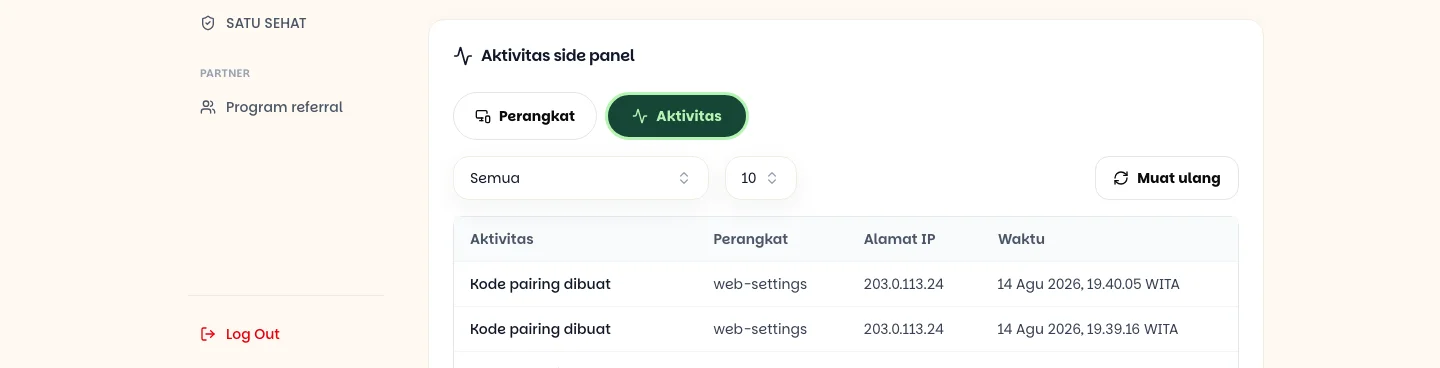
Four kinds of activity are logged: pairing code created, device paired, device revoked, and EMR marked as done. Each keeps the device label, the IP address, and the time — useful for confirming that no unfamiliar device is connected to your account.
If something goes wrong
| Symptom | Most common cause |
|---|---|
| The side panel does not appear | Chrome older than 114, or the extension has not been opened since installing |
| The pairing code is rejected | The code has expired or was already used — generate a new one |
| The panel signed itself out | The device was revoked from the device list |
| The patient session list is empty | No sessions in the selected clinic — try Change Clinic, or refresh the list |
| The transcript is empty although the SOAP note is there | That session has not finished processing |
| The panel is in a different language from the app | The panel language is set separately in its own settings |