
Sharing a Record with a Clinic
Sharing a medical record or a patient with clinic colleagues, and taking it back.
Records in Medisa are private: only the doctor who created one can open it, even when they belong to a clinic. Sharing is a deliberate act, taken per patient or per record.
When to use it
- The same patient is treated by more than one doctor in your clinic.
- You are referring to a colleague and want them to read the existing history.
- You are away, and the covering doctor needs context from previous visits.
Requirements
Two conditions must hold
- You hold an active seat in the target clinic. Without one there is no clinic to pick.
- The record is verified on the blockchain. An unverified draft cannot be shared — what you share must be a document you have signed off.
See Editing an EMR for verification, and Organization Feature for seats.
Two scopes
| Scope | What goes with it | Use when |
|---|---|---|
| Per record | One verified record only | Only one visit is relevant to your colleague |
| Per patient | The patient profile and all their records | The patient is genuinely treated jointly, over time |
Start with the narrowest. Sharing a single record is far easier to justify than opening a patient's whole history.
Sharing one record
Open a record marked Verified on Blockchain and press Share EMR at the bottom of the screen.
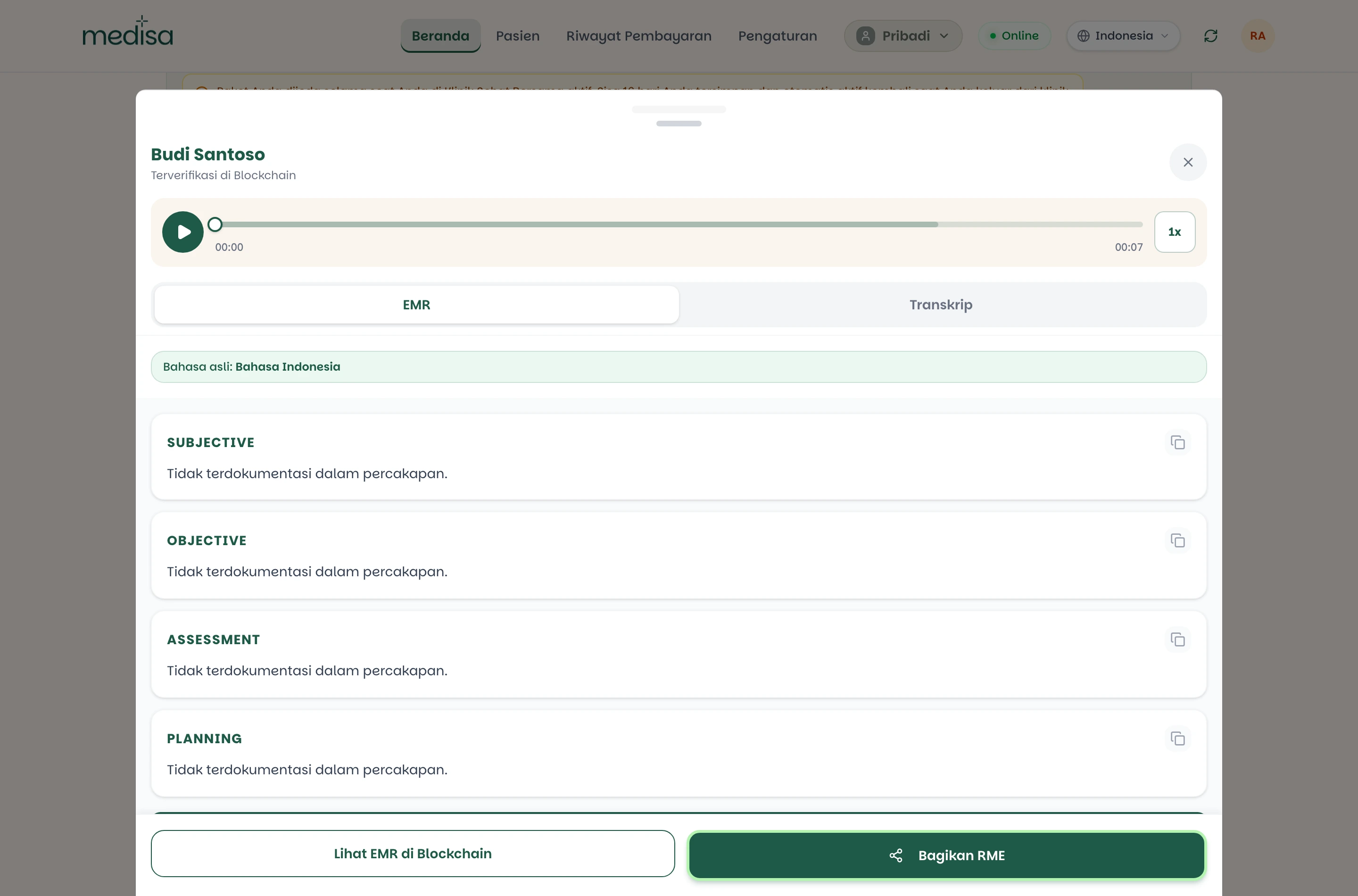
Pick the target clinic under Share with. If you belong to more than one clinic, choose one — sharing always goes to a single clinic, never to all of them at once.
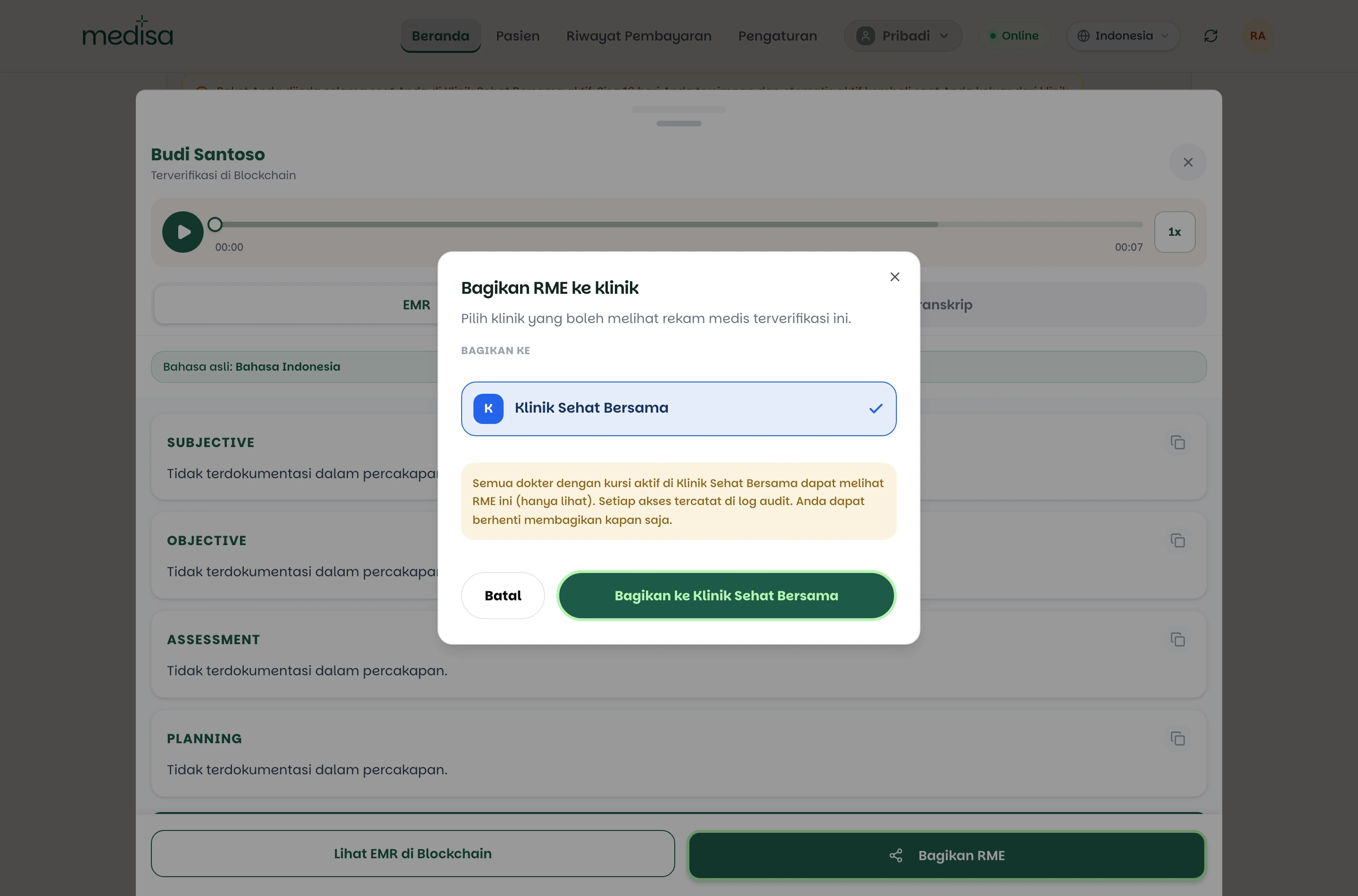
Read the warning, then confirm. Every doctor with an active seat in that clinic can read the record immediately.
Once shared, the record shows Shared with the clinic's name.
Sharing a patient
The patient detail has a Clinic sharing section showing its status:
- Private — only you can see this patient and their records.
- Shared with the clinic name — clinic members with an active seat can view this patient and their records.

Press Share with clinic, pick the clinic, and confirm.
What your colleagues see
Colleagues who receive access see the data clearly marked:
- A Shared with you badge in the patient or record list.
- A banner: "Shared by the doctor's name from the clinic — view only. Your access to this patient is recorded in the audit log."
Access is read-only. Colleagues cannot edit your SOAP note, cannot re-verify it, and cannot pass it on to anyone else.
Every access is logged
Each time a colleague opens data you shared, that access goes into the audit log — who, when, and which record. That is what keeps sharing clinically accountable.
Stopping sharing
Press Stop sharing on the record or patient concerned.
Your colleagues' access ends immediately and the data becomes private again. There is no waiting period, and you need nobody's permission — the data remains yours.
The accesses that already happened stay in the audit log. Stopping sharing ends future access; it does not erase the past record of it.
If something goes wrong
| Symptom | Most common cause |
|---|---|
| No Share EMR button | You do not belong to an active clinic |
| "Only blockchain-verified EMRs can be shared with a clinic" | The record is still a draft — verify it first |
| "You need an active seat in that clinic to share this EMR" | Your seat there was revoked or has expired |
| A colleague cannot see the shared data | Their seat is inactive, or they are in a different clinic |
| The data is still visible after unsharing | Reload the page; revocation takes effect immediately server-side |