
Creating a Patient
Adding a new patient and finding one that is already registered.
Every medical record belongs to a patient. This page covers registering a new one and finding someone already on file.
Before you start
- Signed in, with a workspace selected. See Authentication.
- The patient details you have to hand. Only two fields are required; the rest can follow later.
The patient list
The Patients menu holds everyone you have registered, with their record number and contact details.
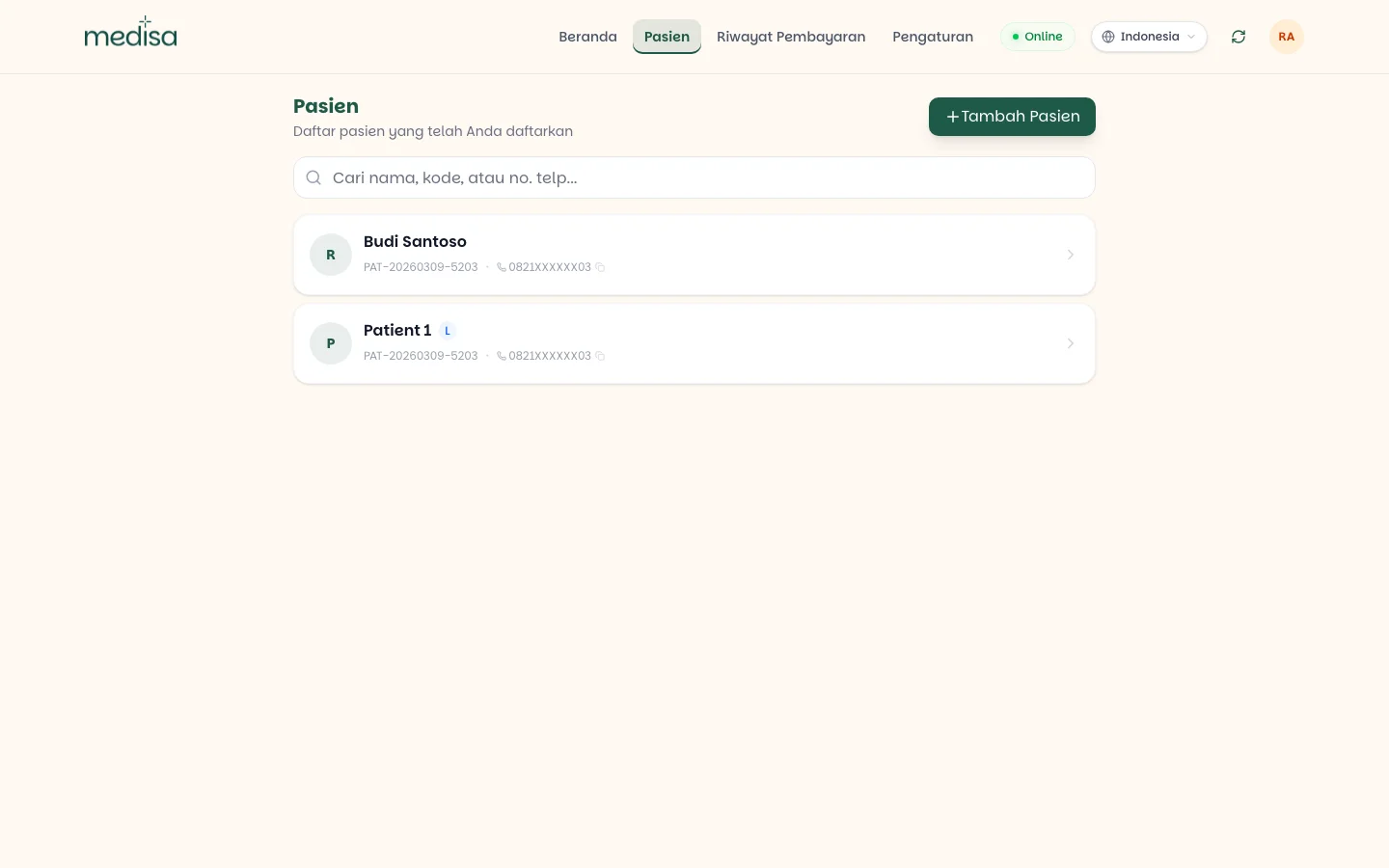
Record numbers are generated automatically when a patient is registered — there is nothing to fill in yourself.
Registering a new patient
Press Add Patient in the top right.
Fill in the Full Name as it appears on their ID. This is the only identity field that is required.
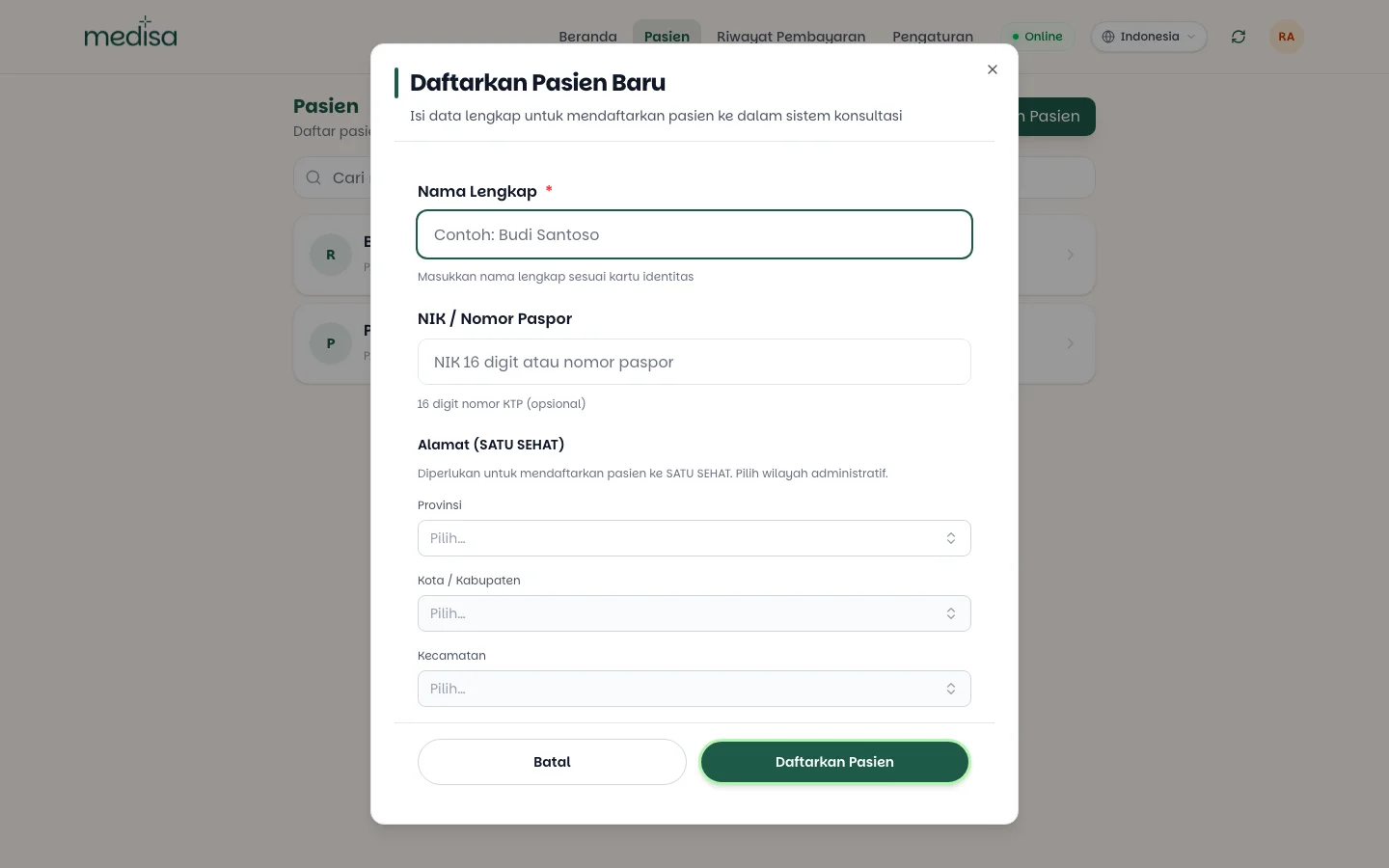
Add the NIK / Passport Number if you have it. It is optional for everyday use, but required if this patient's records will be submitted to SATU SEHAT.
For SATU SEHAT patients, complete the SATU SEHAT address — province, city or regency, district, and village are chosen in order. Each choice unlocks the list below it.
Fill in the supporting fields: date of birth, sex, phone, home address, emergency contact, and their relationship to the patient.
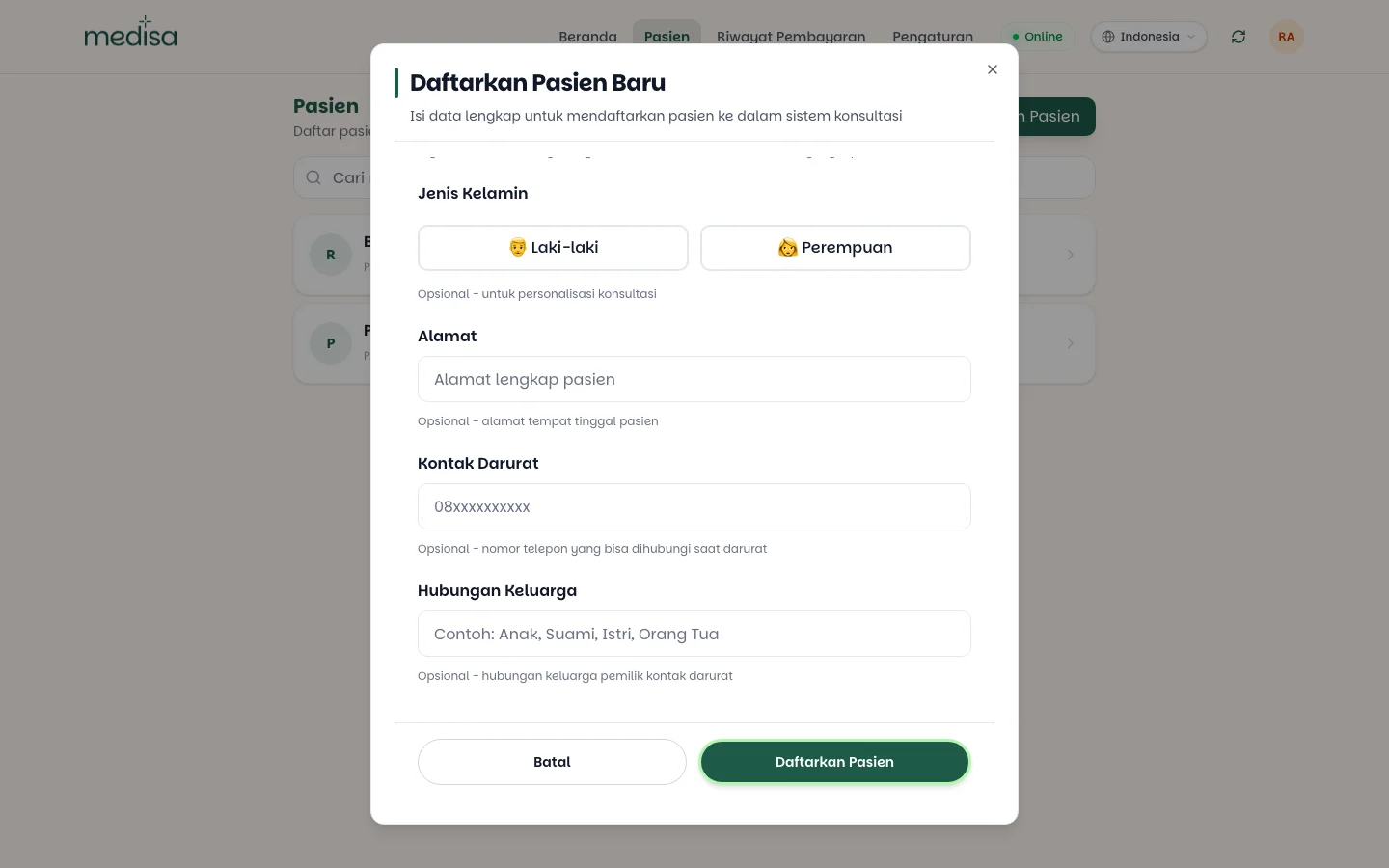
Press Register Patient. The patient is immediately selectable when recording.
Registering during a recording
You do not have to leave the recording flow for an unregistered patient. When you start recording, choose New Patient in the patient type dialog and the same form opens. See Creating a New EMR.
Required and optional fields
| Field | Status | Notes |
|---|---|---|
| Full name | Required | As it appears on their ID |
| Date of birth | Required | What age is calculated from |
| NIK / passport number | Optional | Required for SATU SEHAT submission |
| SATU SEHAT address | Optional | Required for SATU SEHAT submission |
| Sex | Optional | Used to personalise the consultation |
| Phone | Optional | For contacting the patient |
| Home address | Optional | — |
| Emergency contact & relationship | Optional | Who to call in an emergency |
Fill in the NIK early if you can
The NIK and administrative address are only needed when a record goes to SATU SEHAT — but adding them later means editing patient data mid workflow. Capturing them at registration saves that step.
Patient data protection
Patient data (PHI)
Patient data is stored encrypted, and the NIK uses a separate encryption key. The usual rule still applies: enter only what you actually need, and make sure the patient knows their data is being recorded.
If something goes wrong
| Symptom | Most common cause |
|---|---|
| The patient is missing while recording | They are registered in another workspace — check the active clinic |
| Search does not find the patient | Try the record number instead of the name |
| SATU SEHAT submission is rejected | The patient's NIK or administrative address is incomplete |
| The region list stays empty | Pick the level above first — cities only load once a province is chosen |