
Authentication
Registration, email verification, sign-in, Google OAuth, and password reset.
This page covers creating a Medisa account, signing in, and getting back in if you forget your password.
Before you start
- An email address you can open — verification is sent there.
- An up-to-date browser. See How to Access Medisa.
Creating an account
Open the sign-up page from the Create account link below the sign-in form.
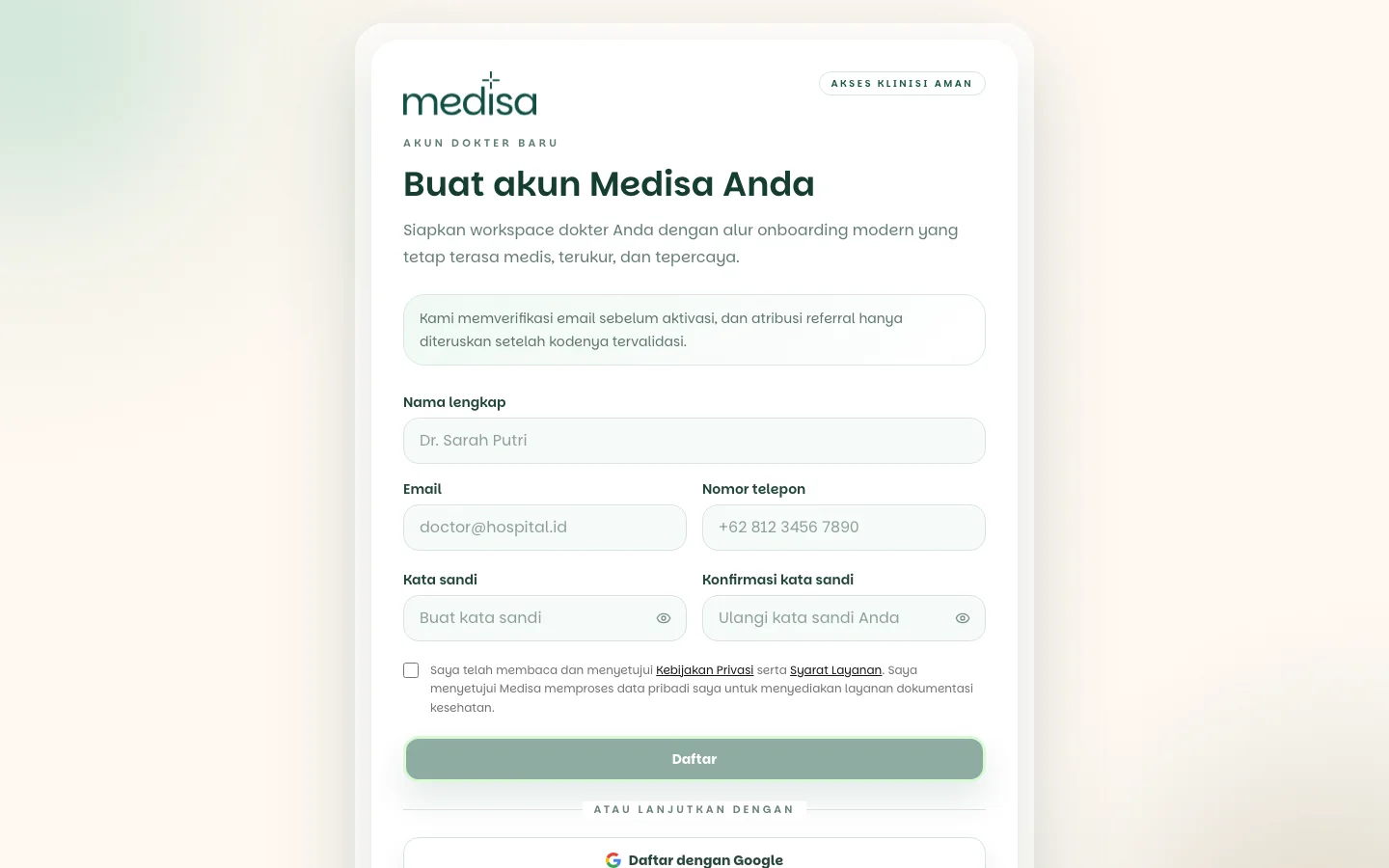
Fill in your full name, email, phone number, and password. The password is typed twice so a typo shows up immediately.
Tick the Privacy Policy and Terms of Service agreement, then press Register.
Medisa sends a six-digit verification code to your email and opens the verification screen.
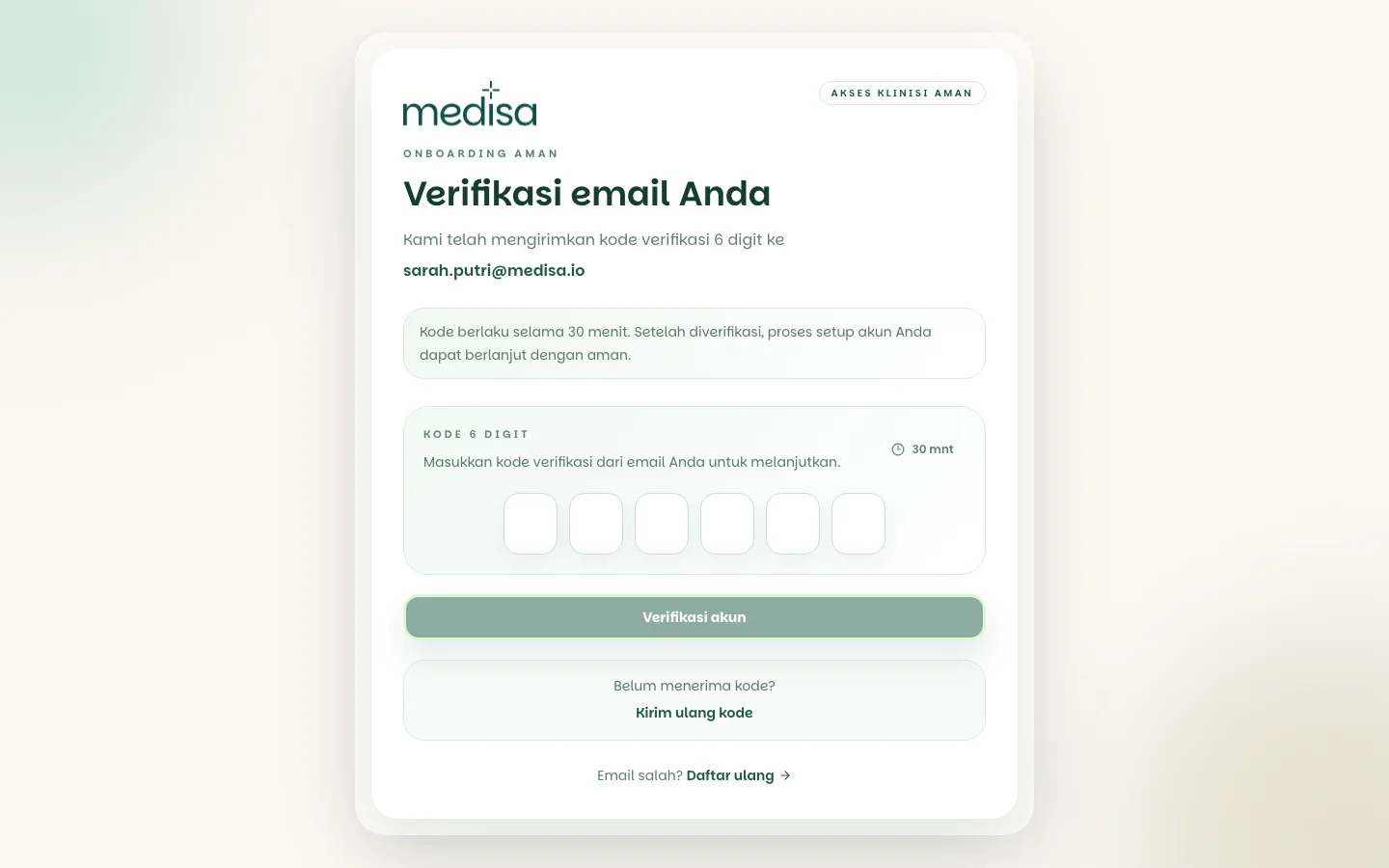
Open the email from Medisa, copy the code into the six boxes, and press Verify account. The account becomes active once this step is done.
Code did not arrive?
Check the spam and promotions folders first. If it is genuinely missing, press Resend code on the verification screen. Mistyped the address? Use the Register again link to start over with the correct one.
Have a referral code? Enter it during sign-up. Referral attribution only applies once the code is validated, so a code supplied later cannot be applied retroactively.
Sign up with Google
Alternatively, press Sign up with Google and pick your Google account. This skips creating a password and verifying your email, since Google has already verified it.
Signing in
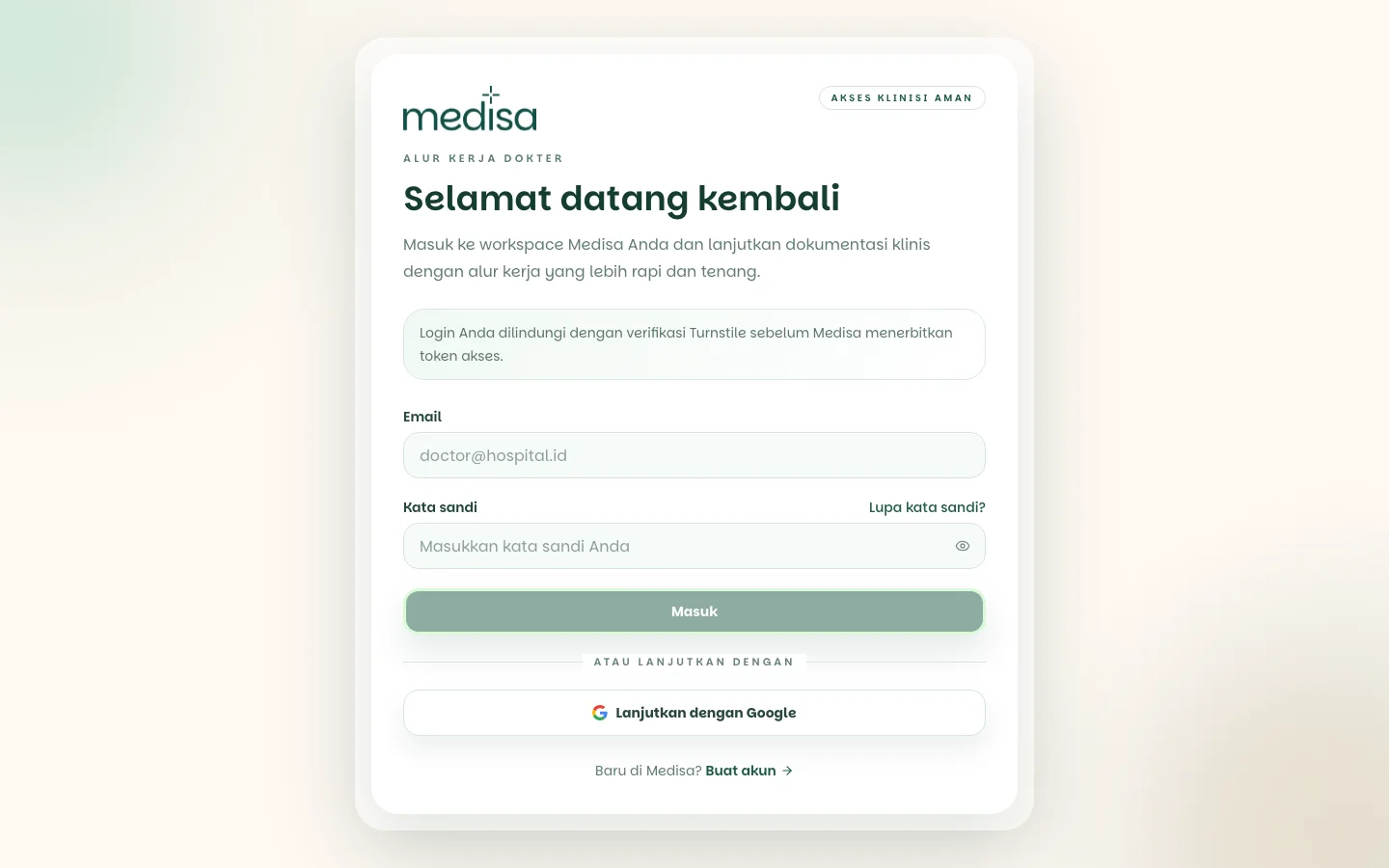
Open Medisa, enter your email and password, then press Sign in.
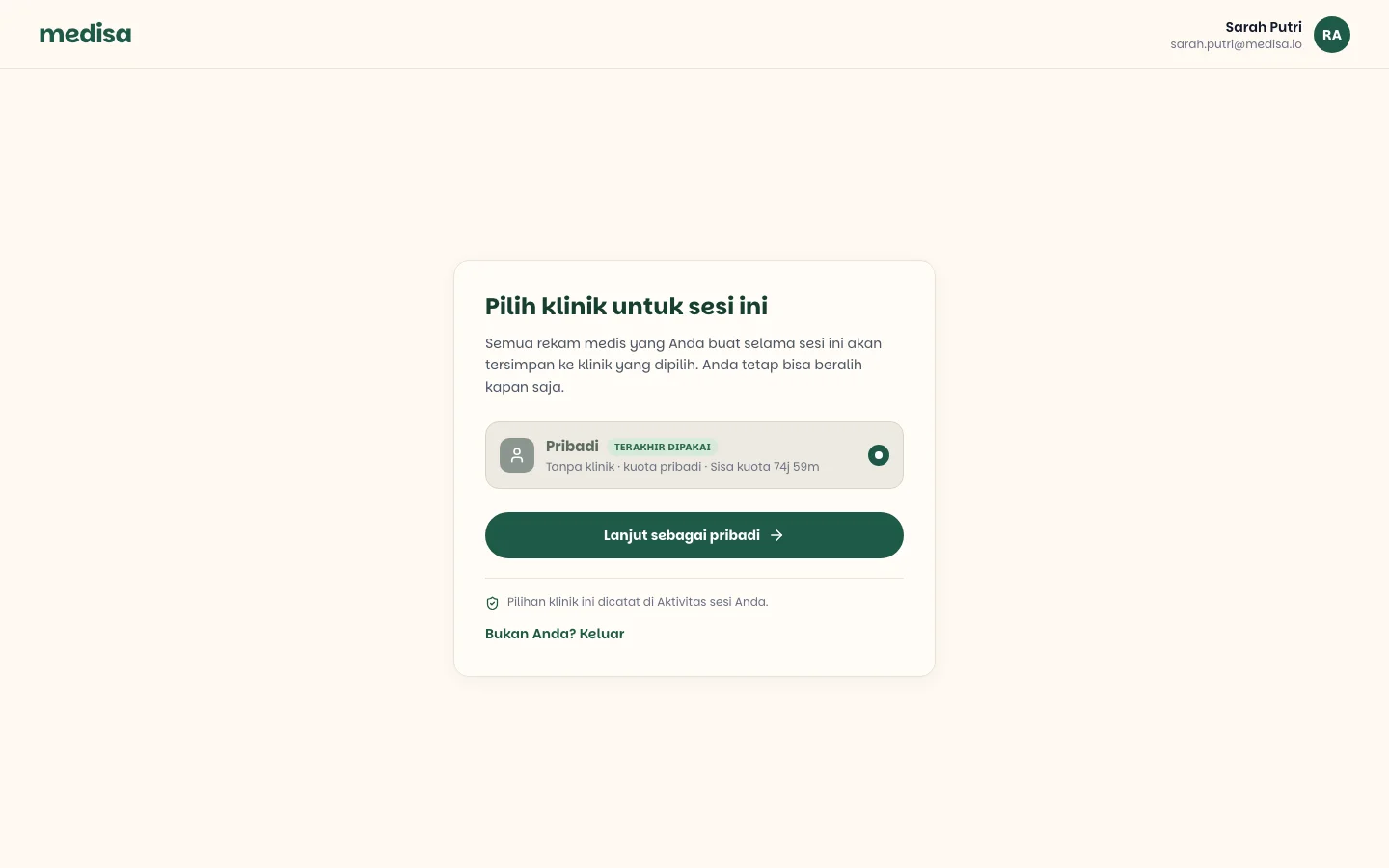
Choose the workspace for this session. If you do not belong to a clinic yet, Personal is the only option.
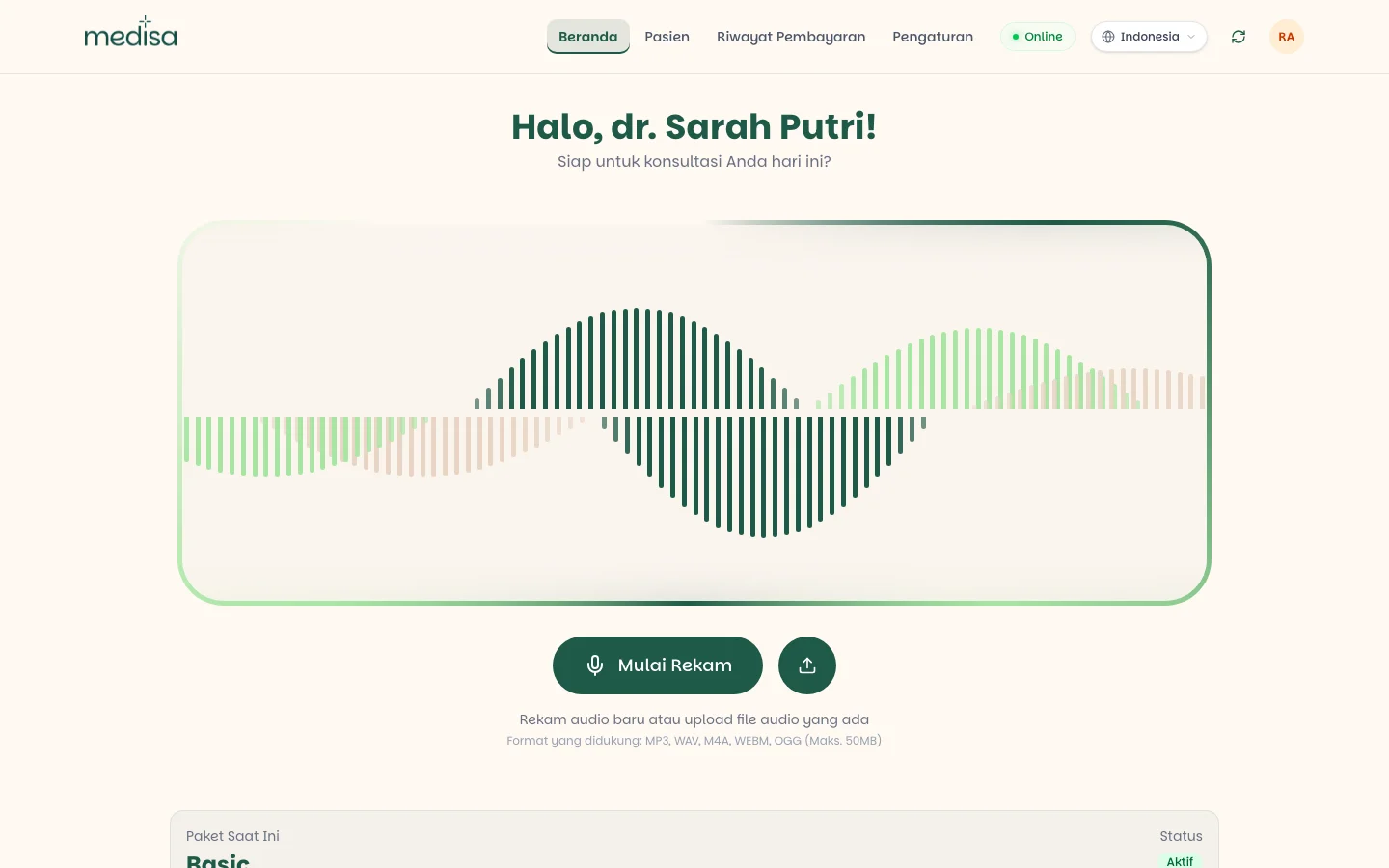
You land on the home screen, ready to record.
The workspace decides whose quota you spend
The workspace you pick determines where records are saved and whose quota is consumed. You can switch at any time without signing out. See System Actors.
Sign in with Google
Press Continue with Google and choose your account. Use the same Google account you signed up with — a different one is treated as a new user.
Forgotten password
On the sign-in page, press Forgot password?
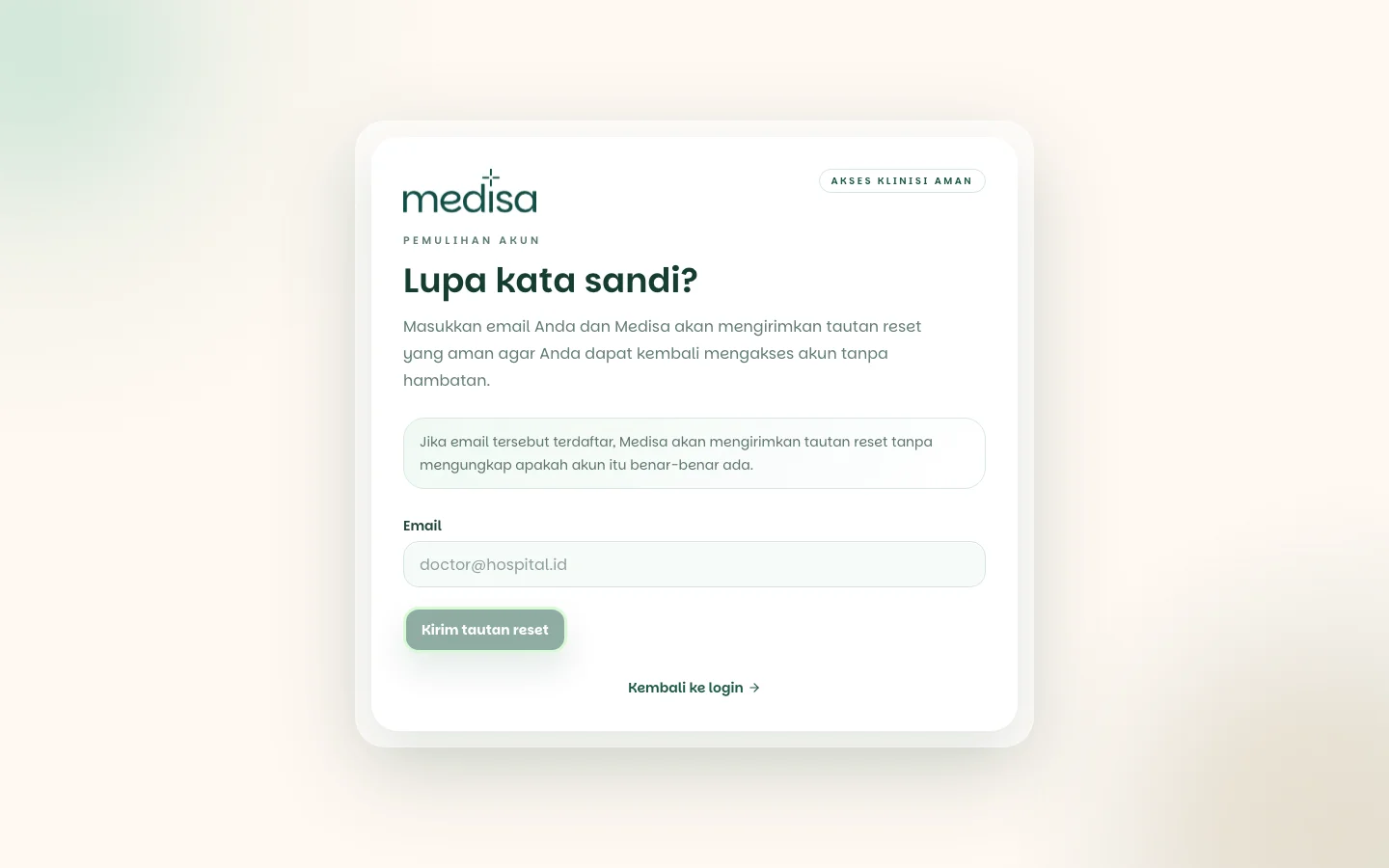
Enter your account email and submit. Medisa confirms that a reset link has been sent.
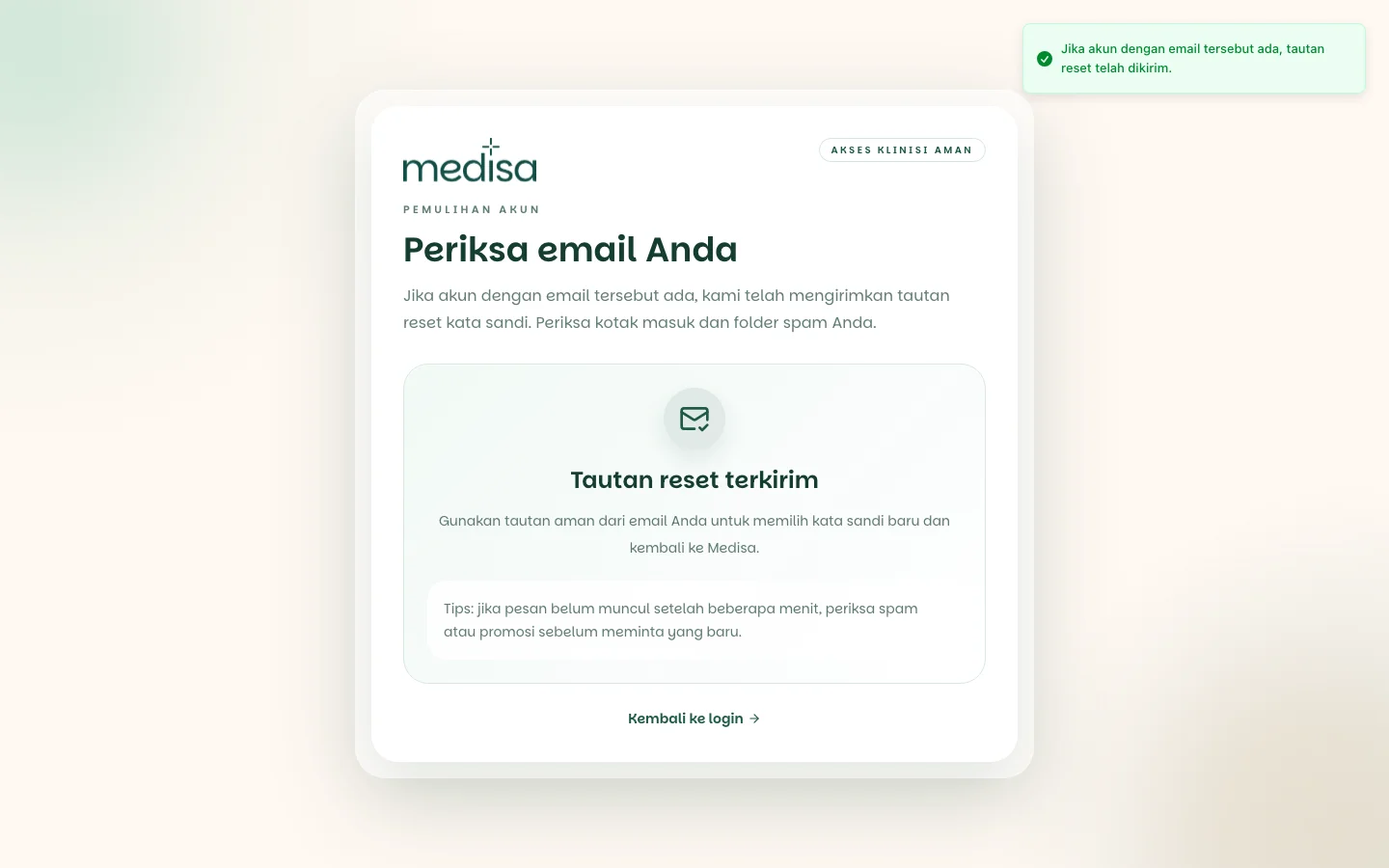
Open the email from Medisa and press Reset Password inside it.
Set a new password — at least 6 characters — and type it again to confirm.
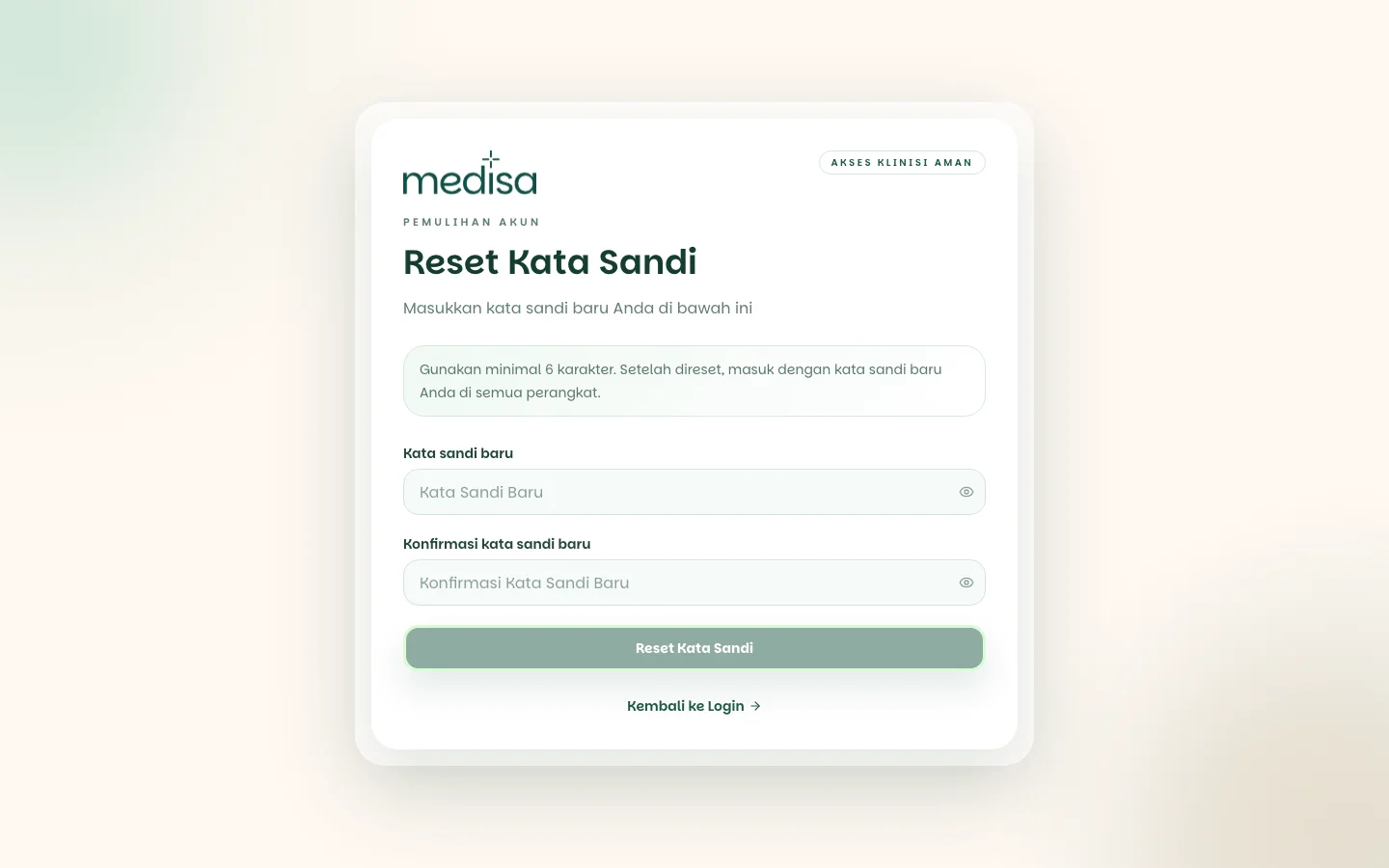
Reset links last 30 minutes and are single-use. If one expires, request a new one. Until you set a new password, the old one still works.
The same confirmation for any address
The "reset link sent" screen appears even when the address you entered has no account. That is deliberate — it stops the page being used to work out which email addresses have a Medisa account. So if the link never arrives, check the address first.
Managing your account
Your profile, language, and the sign-out button live under Settings.
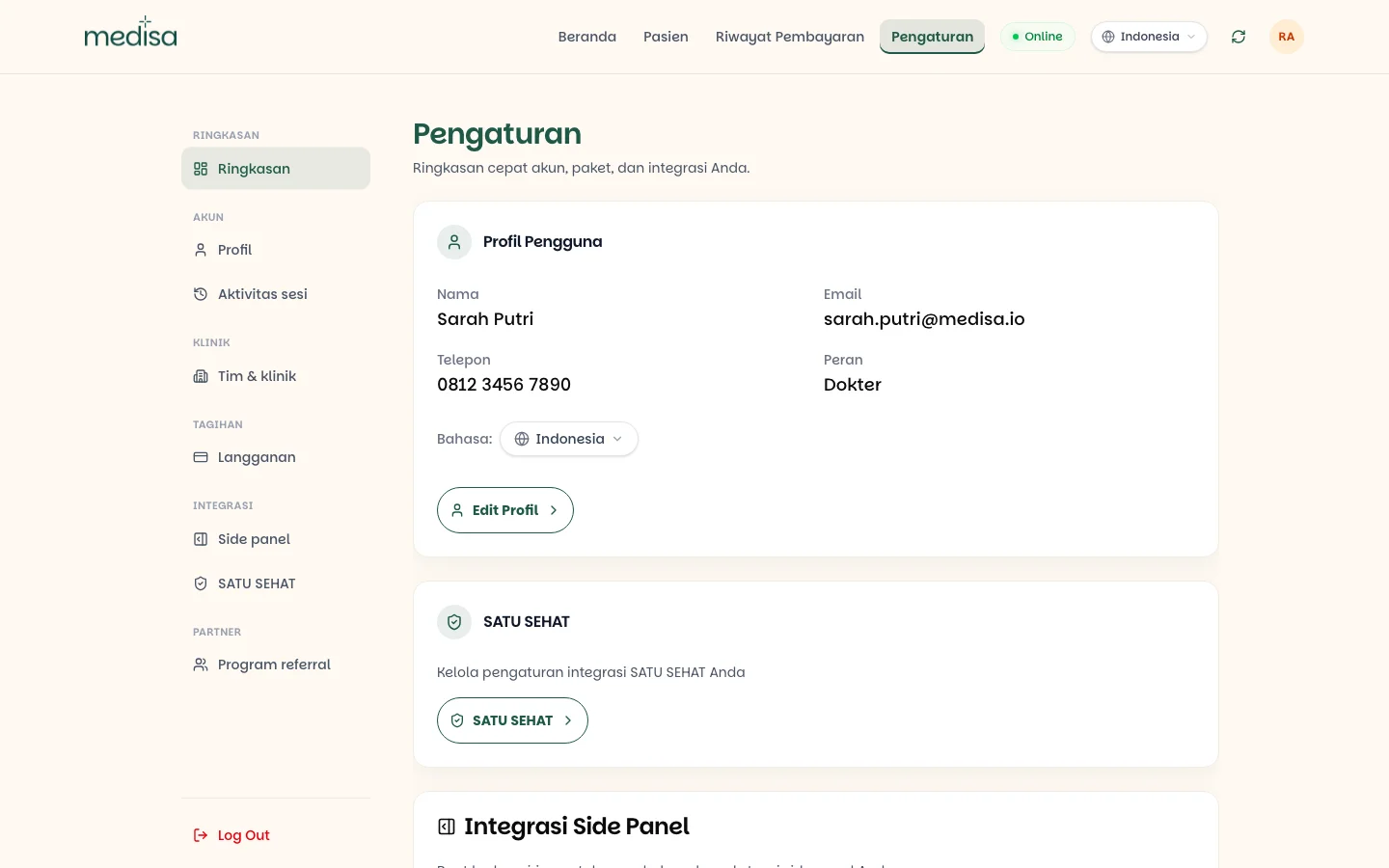
To change your name, phone number, or interface language, open Settings → Profile.
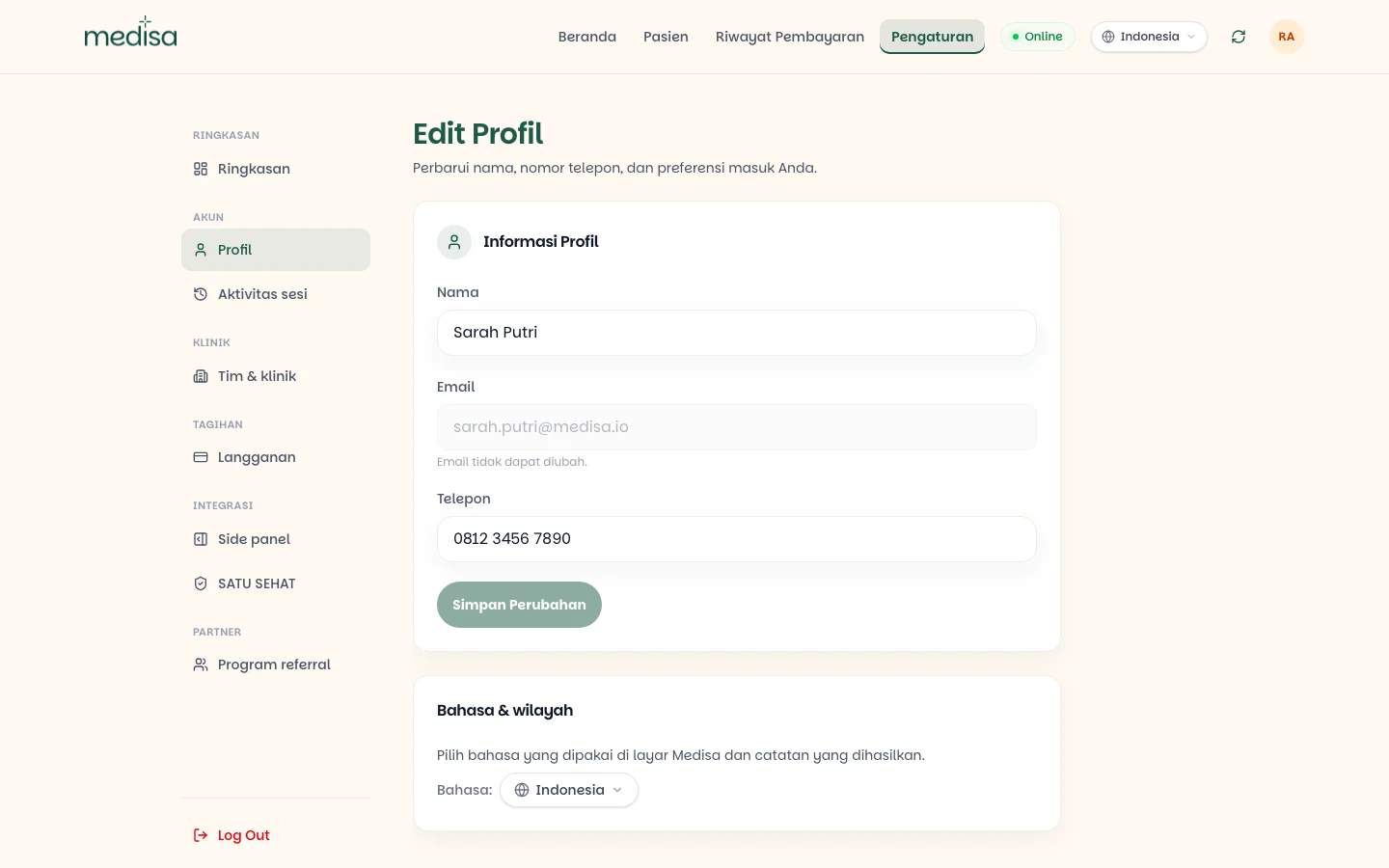
Log out sits at the bottom of the Settings menu. Logging out ends the session on that device only; sessions on your other devices keep running.
If something goes wrong
| Symptom | Most common cause |
|---|---|
| Cannot sign in although the password is right | Email not verified yet — check the inbox and spam folder |
| Signing in with Google produces an empty account | A different Google account than the one used at sign-up |
| The reset link does not work | It expired or was already used — request a new one |
| The patient list looks empty after signing in | The active workspace is not the one you expected — check the clinic picker |
| The record button does nothing | Microphone permission has not been granted in the browser |