
Medisa Enterprise
Medisa run for a single hospital: what stays the same, what differs from the shared service, and how to get started.
Medisa Enterprise is Medisa run for a single hospital. Its app, servers, database, audio storage, and encryption keys are not shared with any other institution. The clinical flow is the same as Medisa at app.medisa.io. What differs is where the data is stored, how accounts are created, how doctors are scheduled, and how the service is paid for.
On this page, the shared service means Medisa at app.medisa.io, used by many doctors and clinics at once.
When Enterprise fits
Enterprise is chosen because of requirements, not because of hospital size. Consider this route when one of the following applies:
- Data must not share infrastructure with other institutions, because of internal policy, audit requirements, a third-party agreement, or data location rules in your country.
- Doctors work in shifts and departments, and the hospital needs to control who is on duty and see usage across the whole hospital.
- Payment has to go through a contract and invoices, not a subscription paid in the app.
If all you need is one subscription and one bill for a group of doctors, the Organization feature in the shared service already covers it and can be used today. If doctors must keep working inside an existing HIS, see the API access route in What is Medisa.
Compared with the shared service
| Shared service | Medisa Enterprise | |
|---|---|---|
| Servers, database, and audio storage | Shared, with data separated per account | Dedicated to your hospital |
| Encryption keys | One set for the whole shared service | Generated fresh for your hospital |
| Data storage location | Decided by Medisa | The region agreed in the contract |
| App address | app.medisa.io | A separate address provided by the Medisa team |
| Creating an account | Self-service signup | Only through an invitation from the hospital admin |
| Signing in | Email and password, or a Google account | Work email and password |
| Payment | A subscription plan, paid in the app | A contract with the Medisa team, no payment in the app |
| Quota | Monthly recording hours set by the plan | Seats, contract term, and recording quota set by the contract |
| Recording | Any time while quota remains | Only while the doctor is on duty |
| Departments, duty schedule, and analytics | Not available | Available |
What stays the same
The doctor's work in the consultation room does not change:
- Consultations are recorded, can be paused and resumed, and the audio is saved to the device first, so it is safe if the connection drops.
- The transcript always follows the language that was spoken. Only the SOAP content is translated.
- The SOAP draft comes with suggested ICD-10 codes and must be reviewed by the doctor before it is saved.
- The FHIR view, the on-chain integrity proof, and the audit log remain available.
- The interface is available in Indonesian, English, Mandarin, and Malay.
What is separate is where the data is stored
Transcription and SOAP composition are still processed by the same third-party AI service as the shared service, so audio and transcripts are sent to that service to be processed. The fingerprint of each medical record is also still written to the same public blockchain, without its content. If your hospital's policy requires AI processing in a specific location, raise it with the Medisa team from the start.
Only in Enterprise
Departments
Admins group doctors into departments, such as Cardiology or the Emergency Department, and each member belongs to one department. Departments are used to schedule shifts in bulk and to break down analytics. A department is not an access boundary: data shared with the hospital stays visible to doctors in other departments.
A department that is already recorded on a medical record cannot be deleted, only renamed.
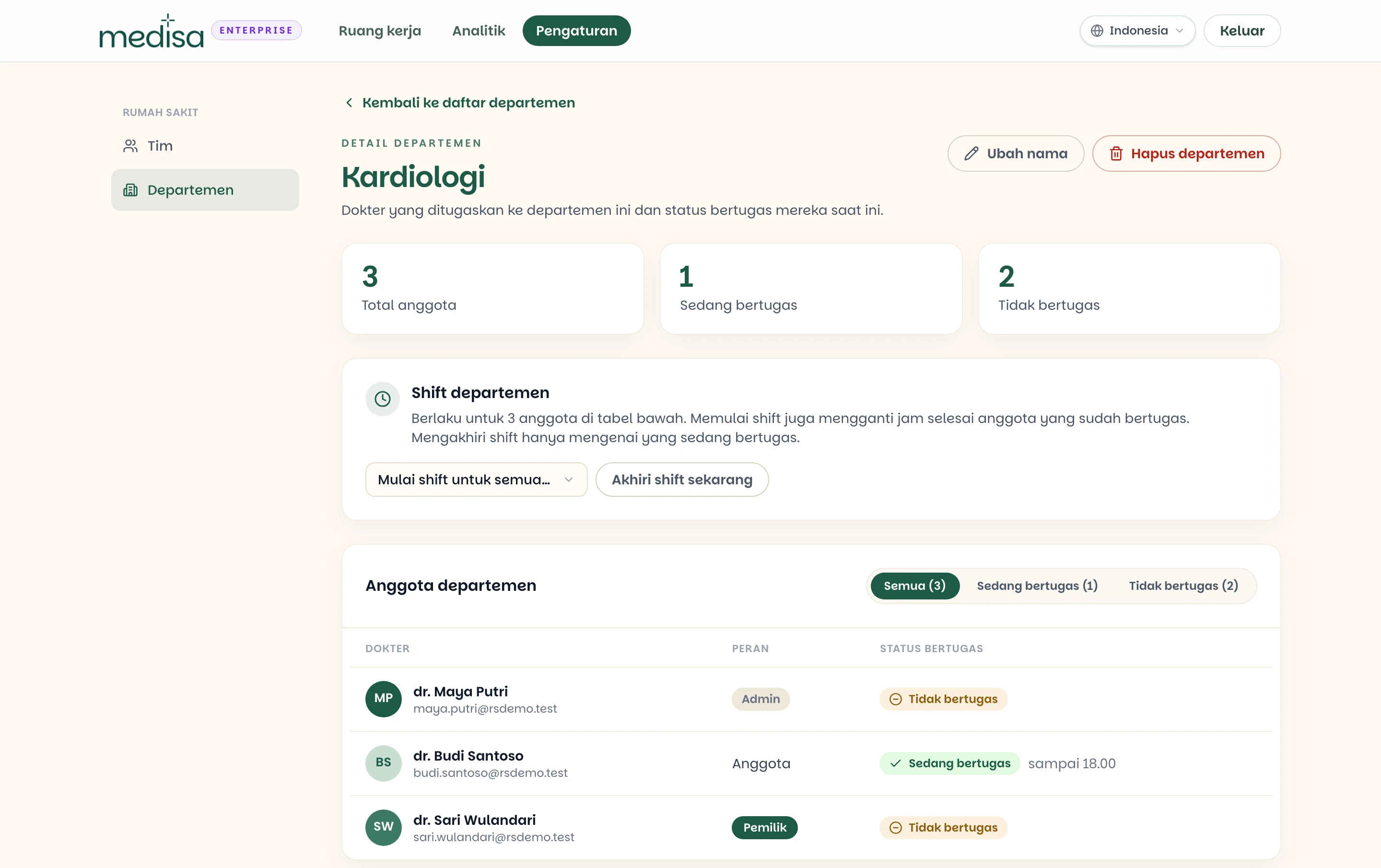
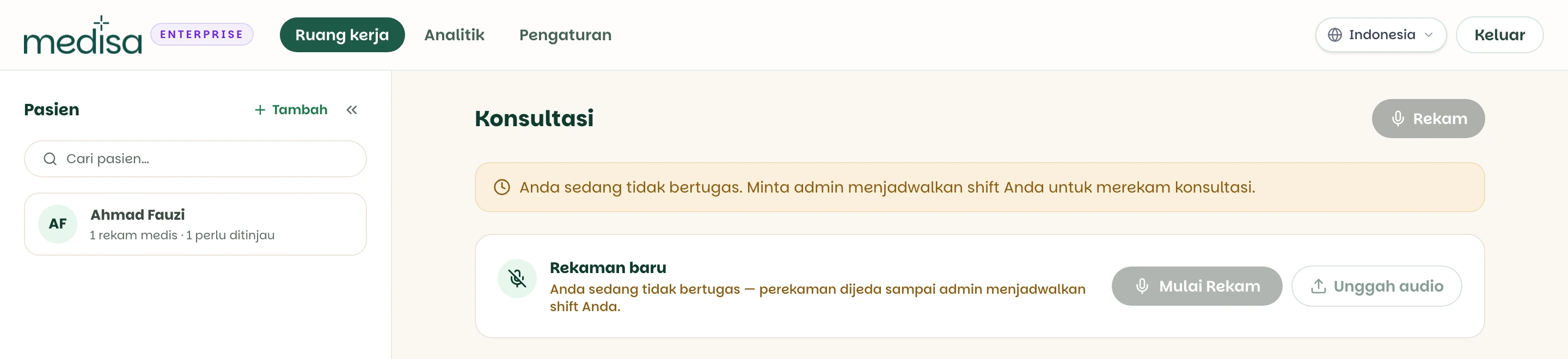
Duty schedule
In Enterprise, a doctor can record only while on duty. An admin starts a shift for one doctor or for every member of a department, with an end time no more than 24 hours ahead, and can end it early. Outside a shift the app shows a message that the doctor is off duty, and the record button cannot be used. Opening patients and medical records still works outside a shift.
A member who is on duty cannot be removed from the team until their shift is ended.
Analytics
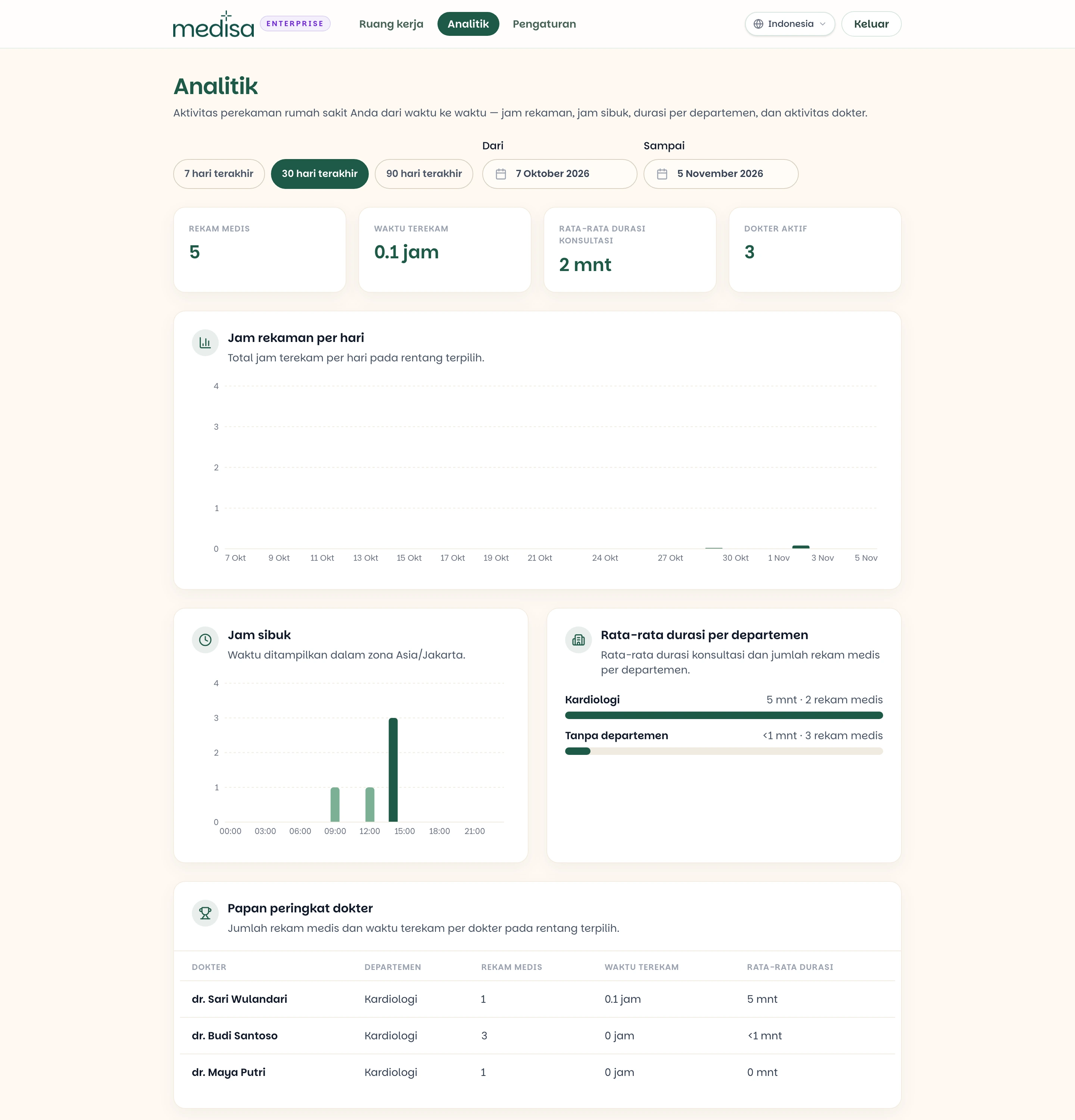
Owners and Admins get an Analytics page that summarises usage across the whole hospital over a chosen date range of up to one year. It shows the number of medical records, recorded time, average consultation length, active doctors, recording hours per day, peak hours, average length per department, and a doctor leaderboard.
Analytics contains numbers only. Transcripts, SOAP notes, and patient data never appear there.
Not available in Enterprise
| Shared service feature | In Enterprise |
|---|---|
| Submission to SATU SEHAT | Not available yet |
| Side panel extension | Not available, because it connects only to the shared service |
| Developer API | Not available, because it connects only to the shared service |
| Android app and desktop app | Not available. Enterprise is used in a browser |
| Signing in with a Google account | Not available. Sign in with a work email and password |
| Subscriptions, vouchers, and the referral program | Replaced by the contract |
Check your SATU SEHAT obligations first
Medical records in Enterprise cannot yet be submitted to SATU SEHAT from Medisa. If your hospital is required to report to SATU SEHAT and plans to do so through Medisa, discuss it with the Medisa team before choosing this route.
Accounts and roles
The contract is agreed. The Medisa team sets up your hospital's environment and applies the contract terms: number of seats, contract term, and recording quota.
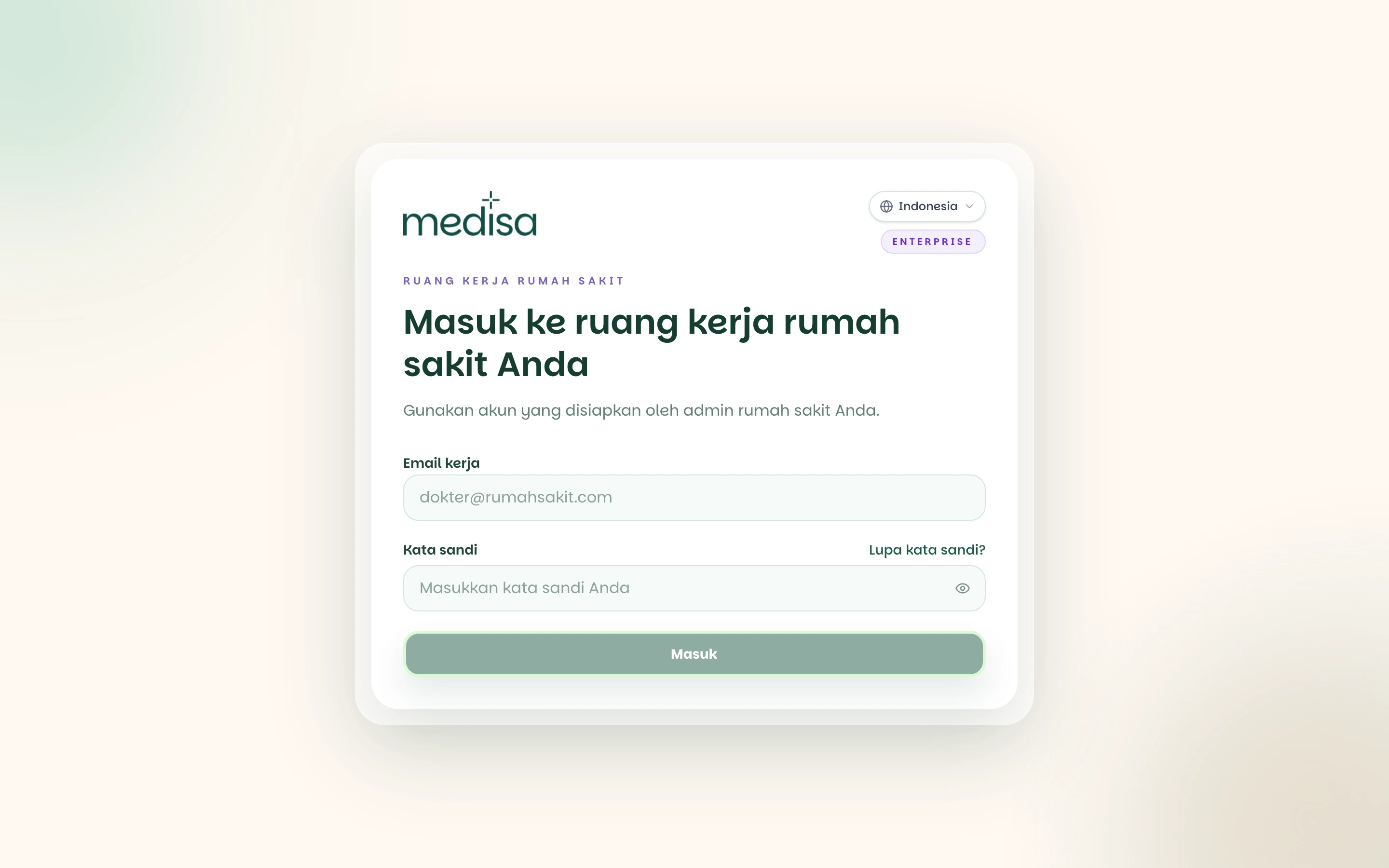
The lead admin activates their account. One person from the hospital, using the email address you gave the Medisa team, receives an invitation email and creates a password. They become the Owner of the hospital workspace.
The team is invited. From Settings → Team, the Owner or an Admin sends invitations to the work email of doctors and staff, with the Admin or Member role. An invitation is valid for 7 days.
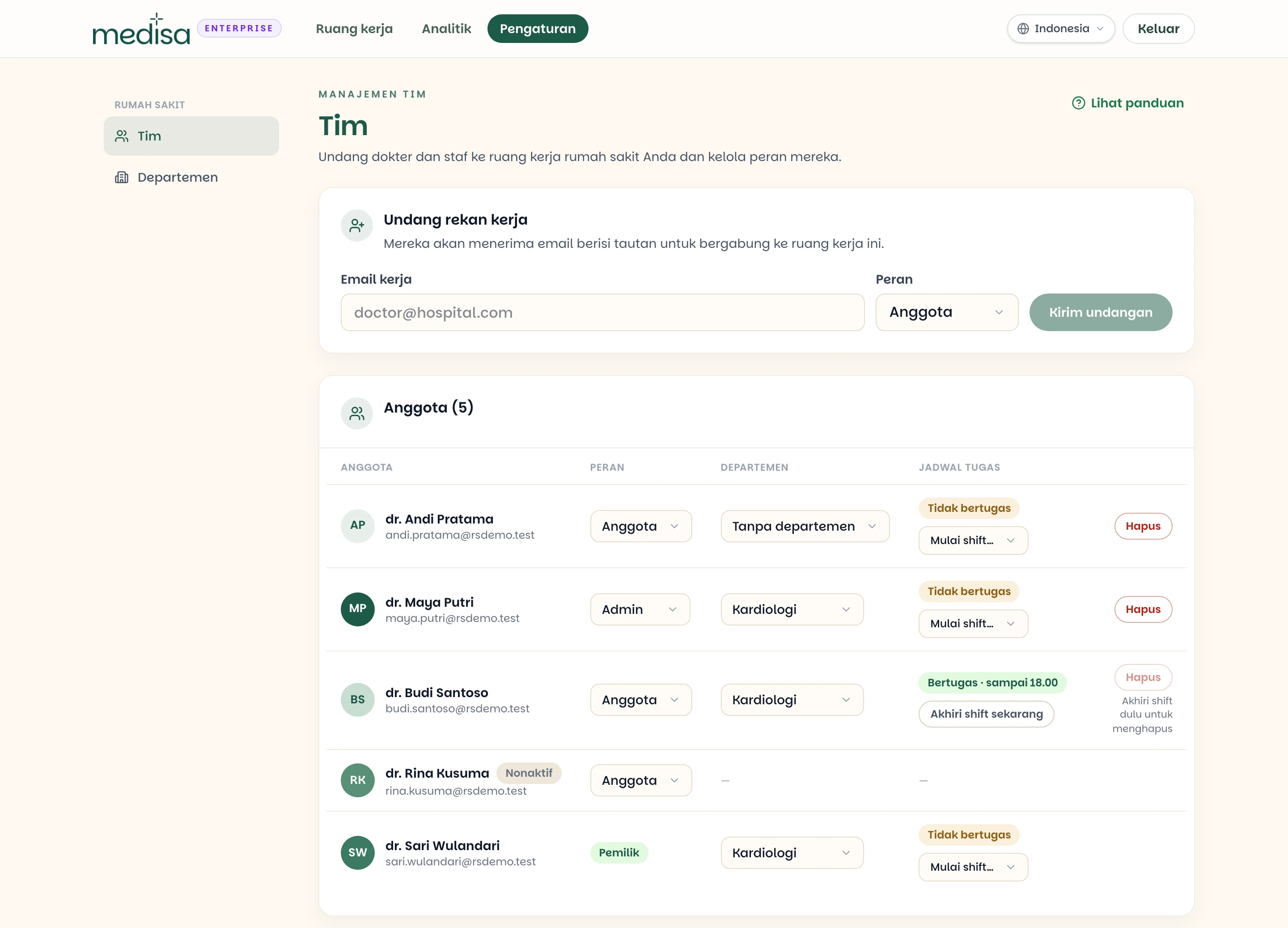
Doctors join. A doctor opens the link in the email, creates an account with the invited email address, and signs in. That email address cannot be changed while creating the account.
| Action | Owner | Admin | Member |
|---|---|---|---|
| Record and compose medical records | ✅ | ✅ | ✅ |
| Invite and remove members | ✅ | ✅ | ❌ |
| Manage departments and the duty schedule | ✅ | ✅ | ❌ |
| View analytics | ✅ | ✅ | ❌ |
| Change member roles | ✅ | ❌ | ❌ |
Every member uses one seat, including the Owner and Admins. Once every seat in the contract is taken, new invitations are rejected until the Medisa team adds seats.
Enterprise accounts are separate from app.medisa.io accounts. A doctor who already has an account on the shared service still needs to create a new account from the invitation, even with the same email address. Medical records in the two places are not visible to each other.
Who sees whose data
As with clinics on the shared service, the default is private.
| Data | Who can see it |
|---|---|
| Patients and medical records | Only the doctor who created them, unless shared |
| Patients or medical records shared with the hospital | Every doctor with an active seat, view only |
| Analytics | Owner and Admins, as numbers only |
A doctor can share one patient together with their medical records, or a single medical record. A medical record can be shared only once it has been verified on the blockchain. Every access to shared data is written to the audit log, and the doctor can stop sharing at any time. It works the same way as Sharing a Record with a Clinic.
The Owner and Admin roles do not open other doctors' medical records. They see only what has been shared, like any other member.
Removing a doctor also closes what they shared
Removing a member from the team releases their seat and stops everything they had shared. Their patients and medical records stay in the hospital's database, but other doctors can no longer open them from the app. Inviting them back does not restore that sharing, so they need to share again.
Contract, quota, and term
The contract sets three things independently, in any combination:
| Contract term | Options |
|---|---|
| Number of seats | A fixed number, or unlimited |
| Contract term | A number of days, or no end date |
| Recording quota | In minutes or hours, for the whole term or per month, or unlimited |
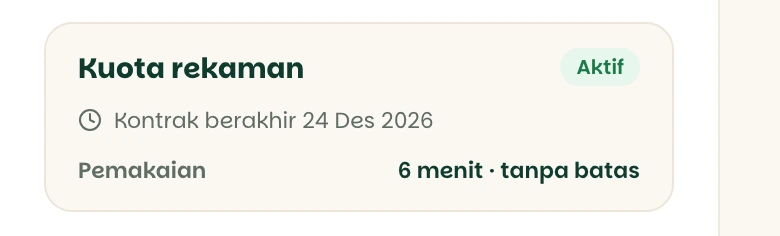
The quota is shared by the whole hospital rather than split per doctor. A monthly quota resets every 30 days. Usage and the contract end date are shown on the Recording quota card in the app.
What happens when a limit is reached:
| Situation | New recordings | Your own medical records | Data shared by other doctors |
|---|---|---|---|
| Quota used up | Rejected | Still open | Still open |
| Contract ended or suspended | Rejected | Still open | Cannot be opened until the contract is active again |
Adding seats, extending the contract, or adding quota is done by the Medisa team at the hospital's request. There is no setting for it in the app.
Getting started
Judge the results first. A few doctors can try Medisa on the shared service with the free plan, to judge the quality of the notes before the hospital decides anything.
Contact the Medisa team. Mention the number of doctors, the expected monthly consultation volume, any data location requirement, and whether your hospital must report to SATU SEHAT.
Contract and handover. Once the contract is signed, the Medisa team sets up your hospital's environment, and the lead admin receives the activation email.
Trial data does not move across
Accounts, patients, and medical records from the shared service are not moved to Enterprise. Use the trial to judge the results, not to build up an archive you intend to bring along.
If something goes wrong
| Symptom | Most common cause |
|---|---|
| A message says you are off duty | No active shift for you. Ask an admin to start one. |
| A message says the hospital's recording quota is used up | The contracted quota has been used. An admin needs to contact the Medisa team. |
| A message says the contract is not active | The contract term has ended or the service is suspended. An admin needs to contact the Medisa team. |
| An app.medisa.io account cannot sign in | Enterprise accounts are separate. Ask the hospital admin for an invitation. |
| An invitation is rejected because seats are full | Every seat in the contract is taken. Remove inactive members, or ask the Medisa team for more seats. |
| An invitation link no longer works | Invitations expire after 7 days. Ask an admin to send it again. |
| A member cannot be removed | That member is on duty. End their shift first. |
| A medical record cannot be shared | The record has not been verified on the blockchain yet. Wait for verification to finish. |
Related pages
- What is Medisa: the four routes for institutions
- Organization Feature: clinics on the shared service
- Sharing a Record with a Clinic