
Pause & Unfinished Recordings
Pausing a recording, resuming an interrupted one, and downloading and removing audio kept in the browser.
Consultations rarely run in a straight line. The patient needs an examination, a lab result needs waiting for, or you get called away for a moment. This page explains how to pause a recording without splitting it into two notes, and what happens to the audio while a recording is unfinished.
Prerequisites
- You know how to record. See Creating a New EMR.
Pausing and resuming
While recording, press Pause in the Recording now panel or next to the page title. The microphone stops recording.
The recording moves to the Unfinished recordings section, labelled Recording paused. Its card shows how long has been recorded, the size of the audio, and when the recording started.
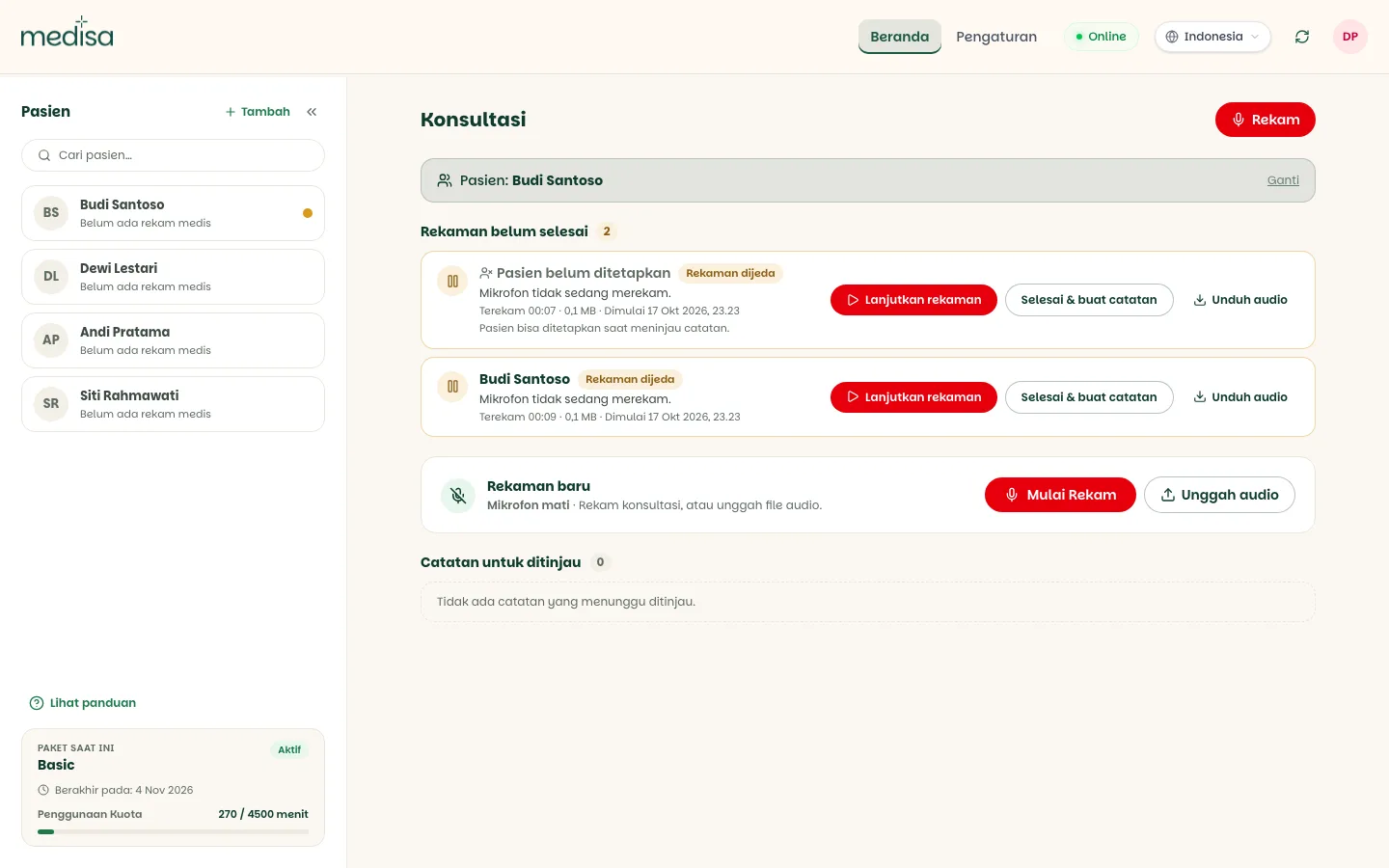
If the consultation carries on, press Resume recording. The recording continues in the same session, so the result is still one note.
If the consultation is over, press Finish & create note. All parts of the recording are joined and processed as usual.
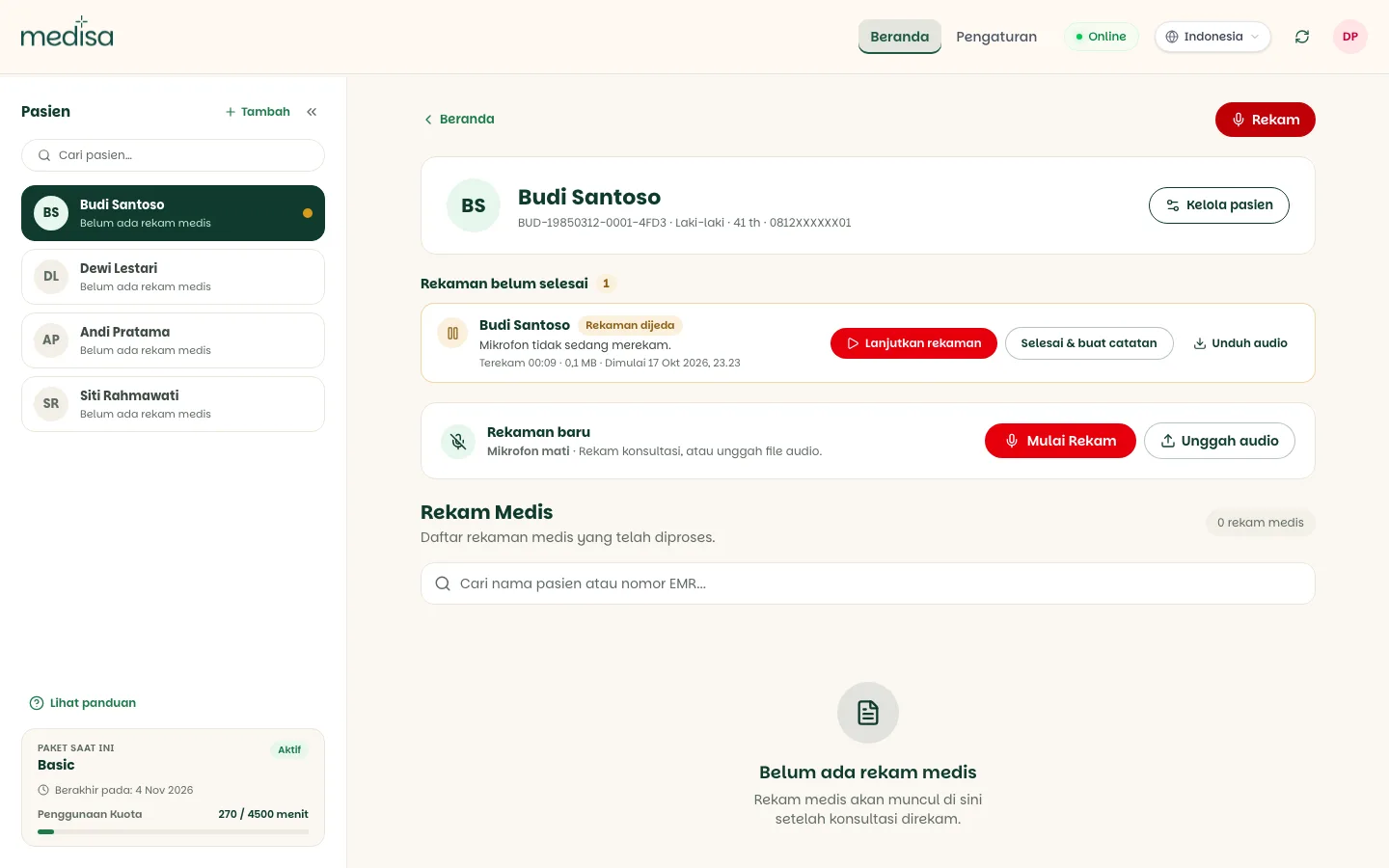
While one recording is paused, you can record another patient. Medisa holds at most 3 unfinished recordings, including the one that is running. Once that limit is reached, Medisa shows 3 recordings are still open. Finish one of them before starting a new recording.
A recording already linked to a patient is marked in the Patients list with A recording for this patient is paused, and it also shows on that patient's page.
Interrupted recordings
Page closed, reloaded, or the microphone unplugged mid-recording? The audio up to that point is already kept, because Medisa saves it to the device every 5 seconds.
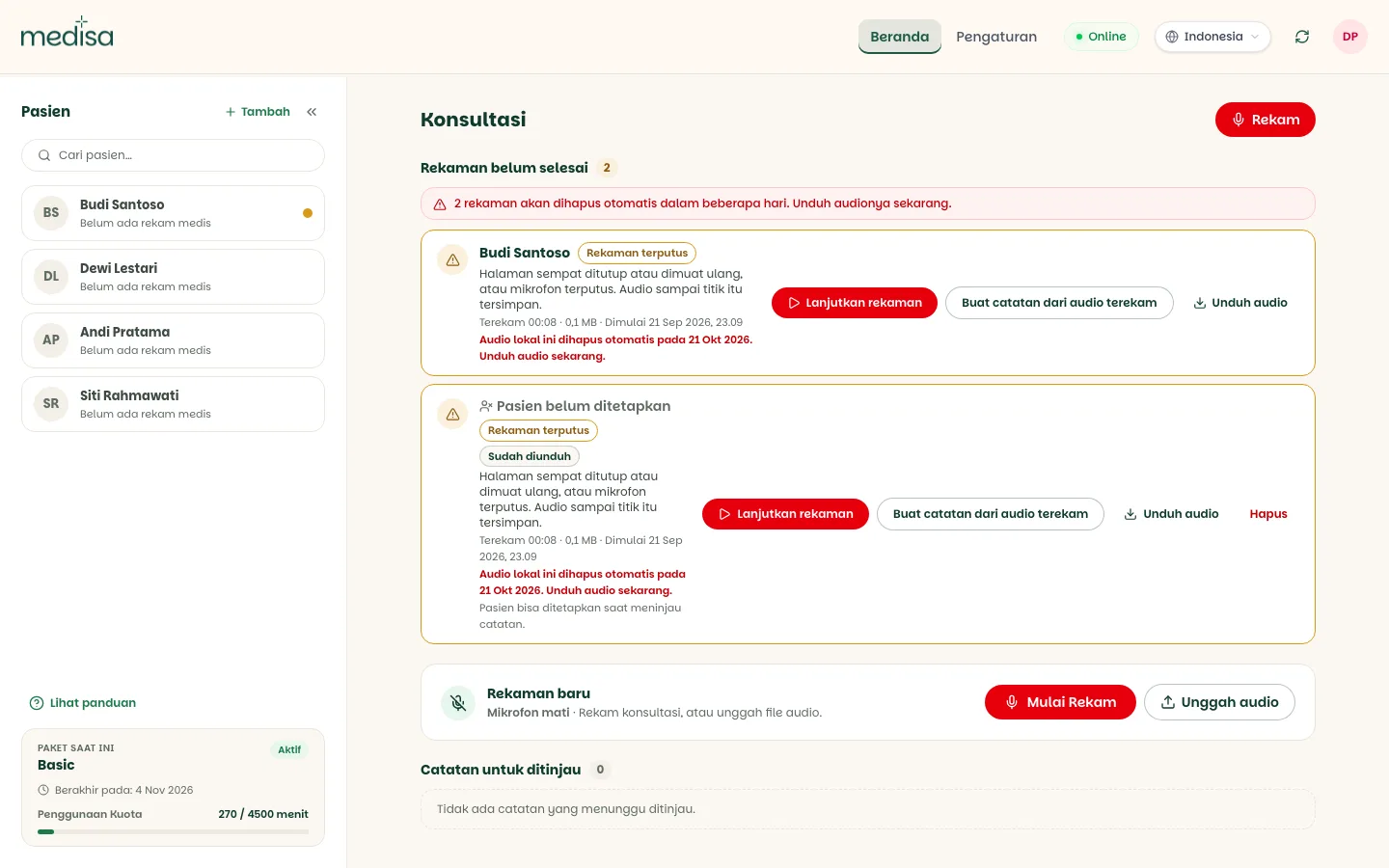
When you open the home screen again, the recording shows with the label Recording interrupted.
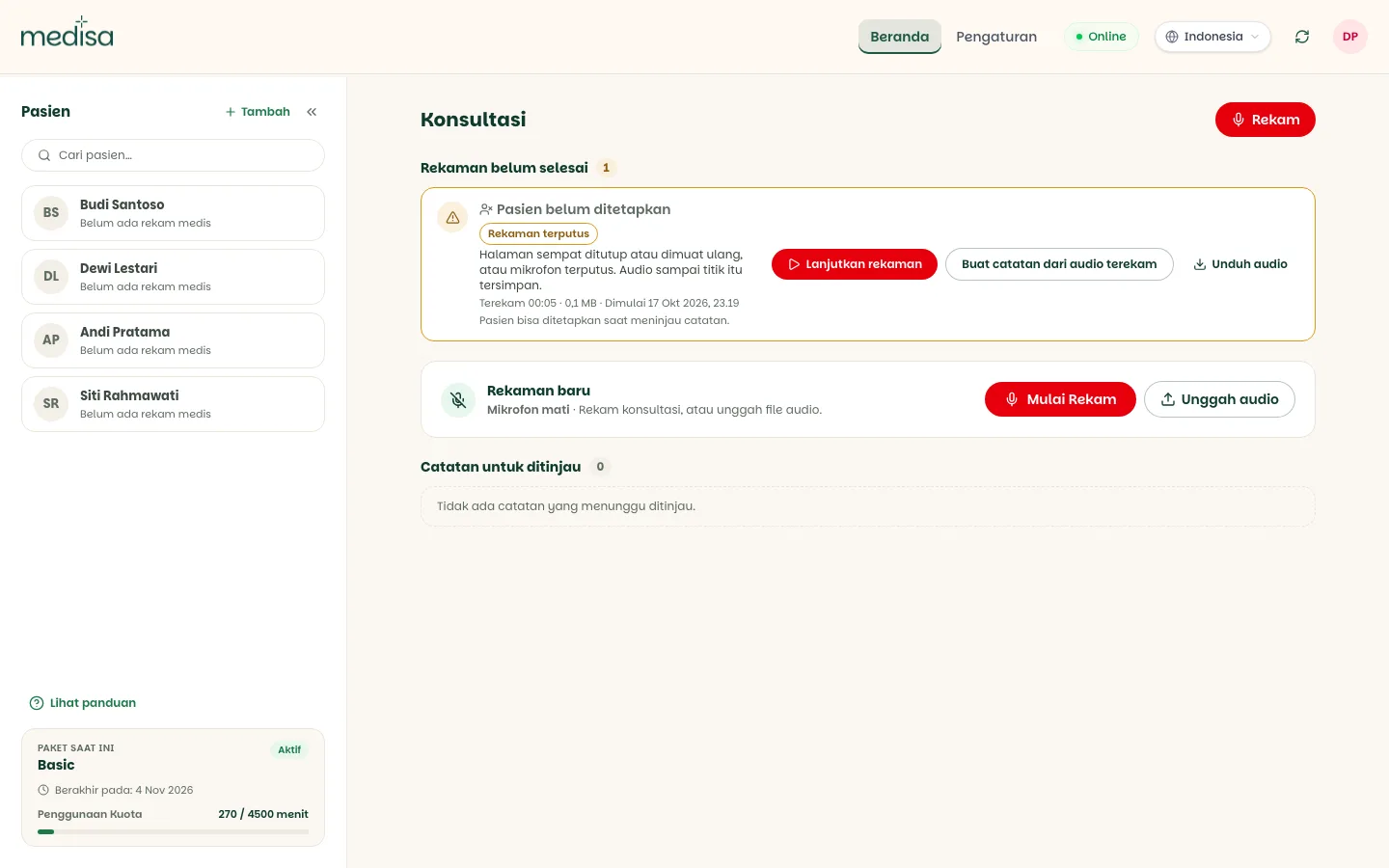
Your options:
| Button | What it does |
|---|---|
| Resume recording | Records again and continues the same recording. When finished, all parts are joined into one note. |
| Create note from recorded audio | Processes the audio you already have, without recording again. |
| Download audio | Saves a copy of the audio to your device. See the next section. |
If the recording stopped before any audio was stored, the card only offers Start new recording and Remove, since there is nothing to turn into a note yet.
Where the audio is kept
While a recording is unfinished, its audio exists only in this device's browser. It has not been sent to the server yet, and it cannot be seen from another device or browser. Finish the recording on the same device you started it on.
Consultation audio held for a long time weighs the browser down, so Medisa watches its size and age.
Size limit
| Waiting audio in total | What happens |
|---|---|
| Below 150 MB | No warning |
| 150 MB or more | Yellow warning: the audio is close to the 180 MB limit |
| 180 MB or more | Red warning: download the audio now and remove sessions you won't process soon |
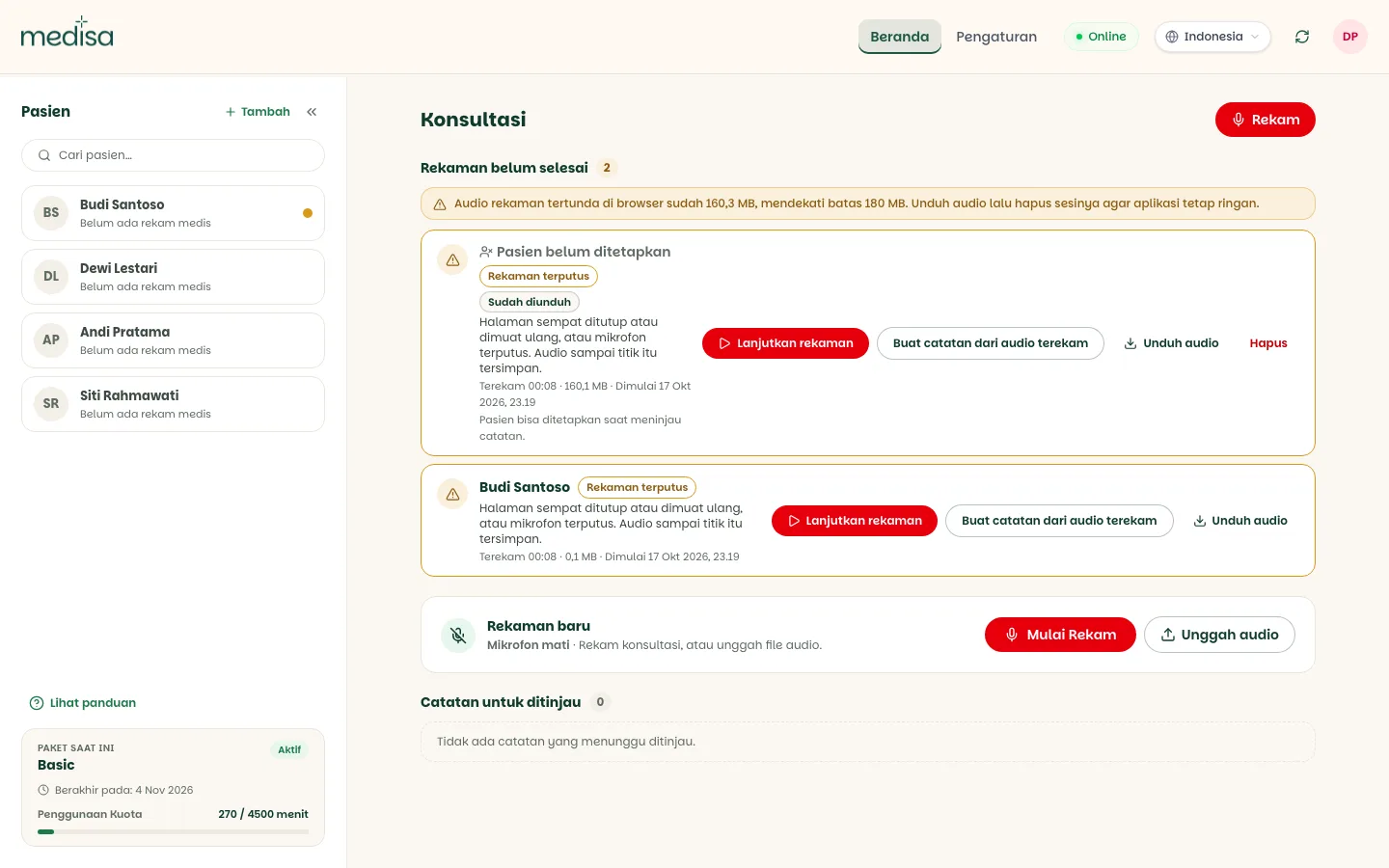
These warnings do not stop recording. When audio piles up, the largest recording is listed first so it is easy to pick.
Medisa also warns you when browser storage is almost full, whatever the size of your recording audio.
Time limit
Age is counted from the last time the recording captured anything.
| Untouched for | What happens |
|---|---|
| 14 days | The card is marked Stale: untouched for more than 14 days. |
| 25 days | The card shows its automatic removal date, and a warning appears above the list |
| 30 days | The recording and its audio are removed automatically from the browser |
Automatically removed audio cannot be recovered
A recording removed after 30 days was never sent to the server, so Medisa has no copy of it. If you still need the recording, download its audio before the date shown on the card.
Downloading the audio
Press Download audio on the recording card. The file is saved with a name like
medisa-recording-2026-10-16-0930.webm. The file name only holds the time the recording started,
never the patient's name.
The Audio downloaded dialog appears. Choose Remove session to clear it from the browser now, or Later to keep the recording for the time being.
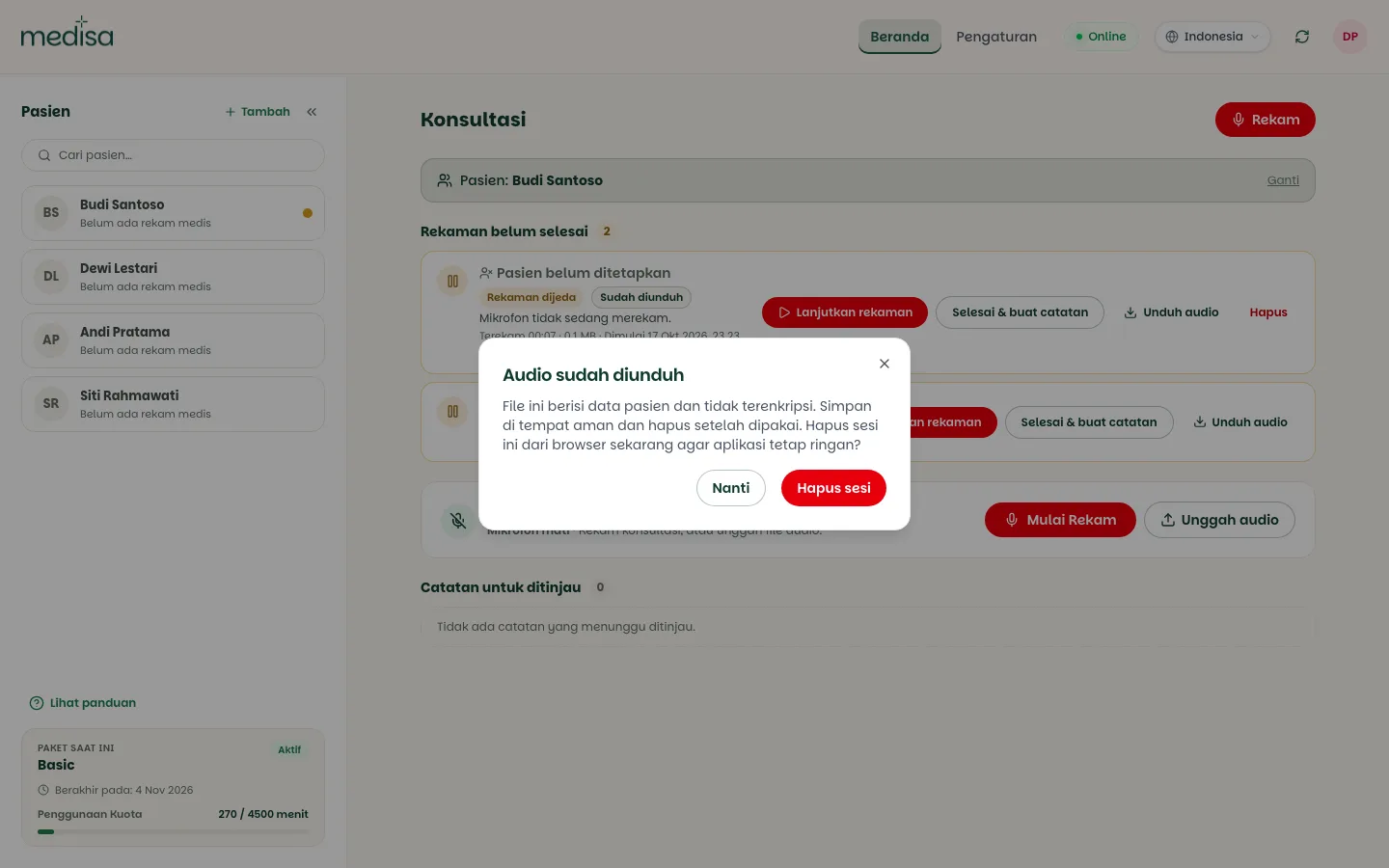
A downloaded recording is marked Downloaded, and a Remove button appears on its card.
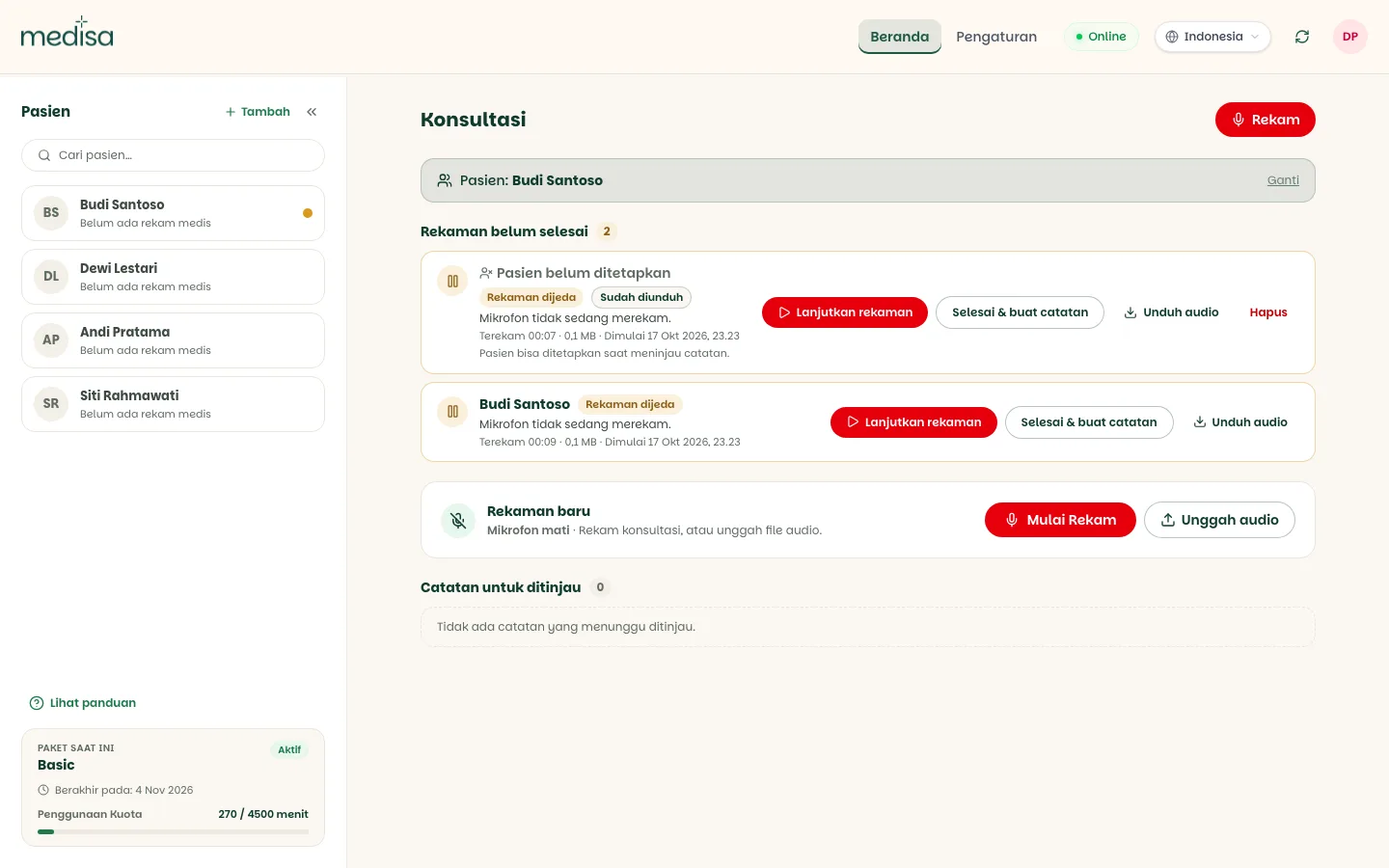
That recording can still be resumed or turned into a note until it is removed.
The downloaded file holds patient data
The downloaded audio file is not encrypted. Keep it somewhere safe, and delete it once you no longer need it.
Removing a recording from the browser
The Remove button only appears after the audio has been downloaded, so a recording cannot be deleted before a copy of it exists.
- Press Remove on the recording card.
- Read the Remove this session from the browser? confirmation, then press Remove session.
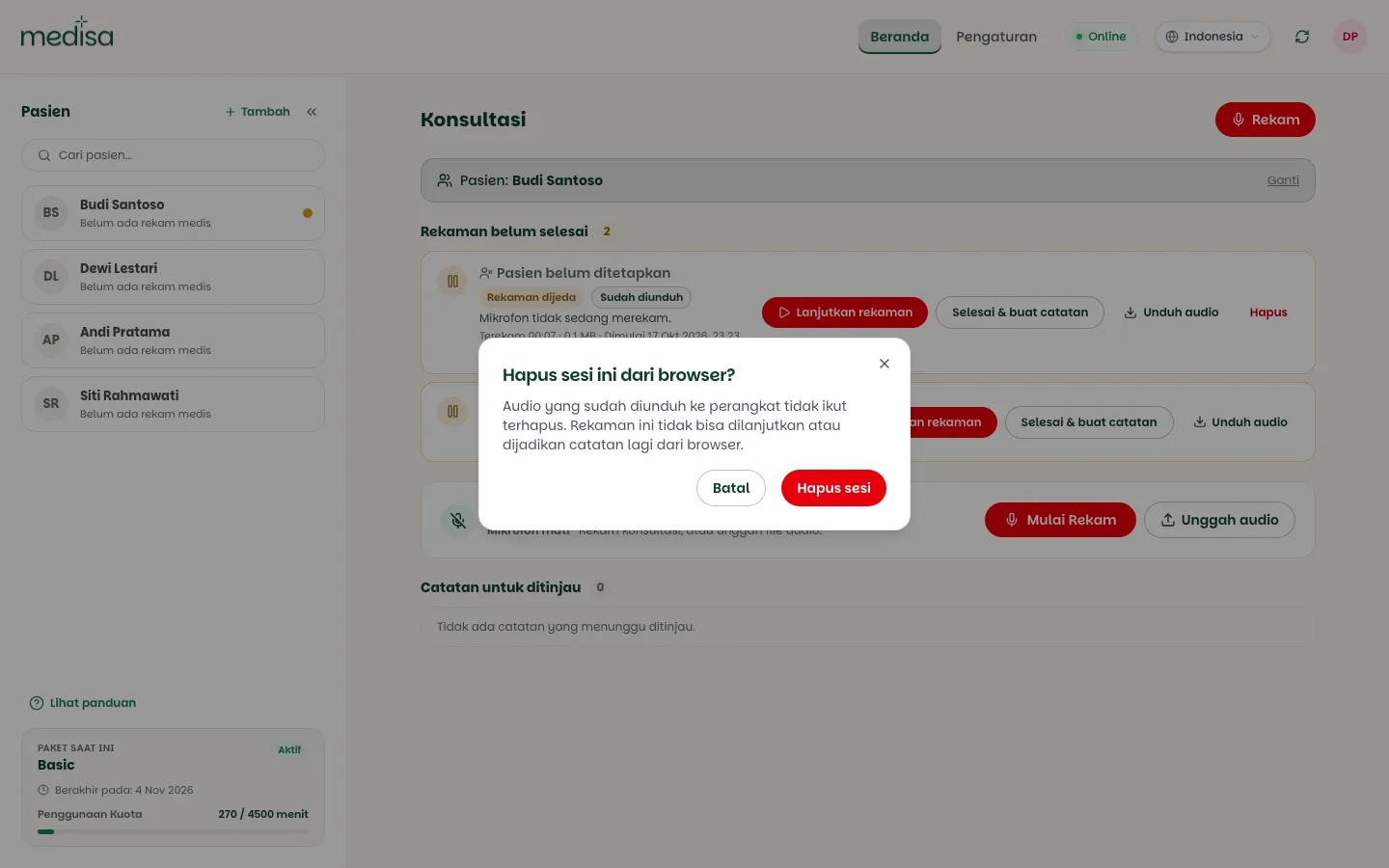
Only the browser's copy is removed. The file you downloaded stays on your device. Once removed, the recording can no longer be resumed or turned into a note from the browser.
Troubleshooting
| Symptom | Most likely cause |
|---|---|
| A new recording cannot start | 3 recordings are still unfinished |
| A paused recording is missing | It was opened on another device or browser. The audio only exists in the browser you recorded in |
| There is no Remove button | The audio has not been downloaded. Press Download audio first |
| The session could not be removed | The recording is still running. Pause it, then try again |
| An old recording disappeared from the list | It was untouched for 30 days, so it was removed automatically |
| The size warning keeps showing | Waiting audio is above 150 MB in total. Finish, or download and then remove, the recordings |